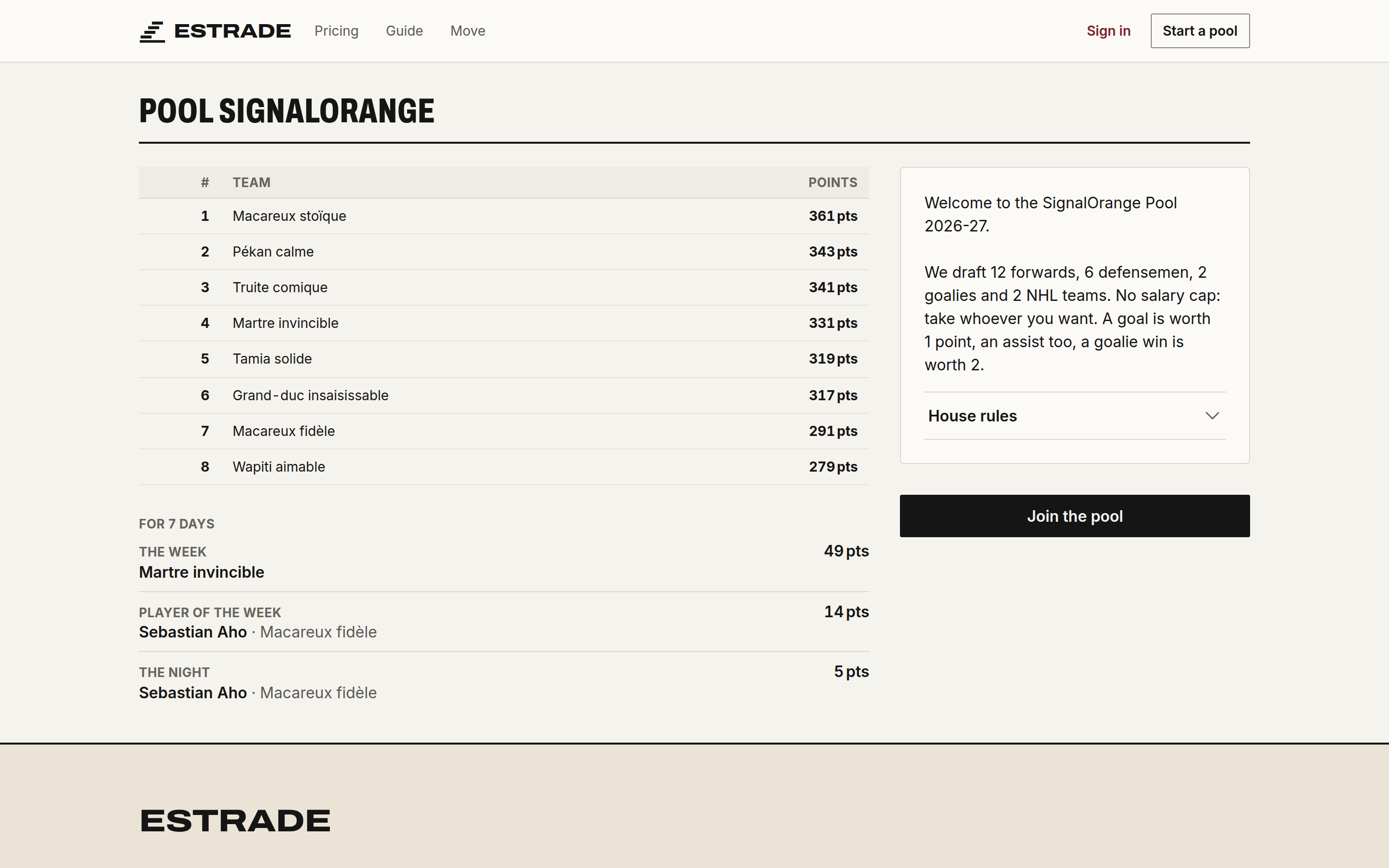
The screenshots show a demo pool, the Pool SignalOrange. For the decisions an organizer makes, read how to organize a hockey pool.
Devices to play on
| Device | How |
|---|---|
| Computer | The site, estrade.ca, in any browser. |
| iPhone and iPad | The site in Safari. The Estrade app is coming soon to the App Store. |
| Mac | The site in Safari. The Estrade app is coming soon to the Mac App Store (Mac with Apple silicon). |
| Android | The site, installed by Chrome as an app: open estrade.ca/installer and tap Install. |
Your account, your pools and your picks are the same everywhere. You can start the draft on the computer and finish it on your phone.
| iPhone | Android |
|---|---|
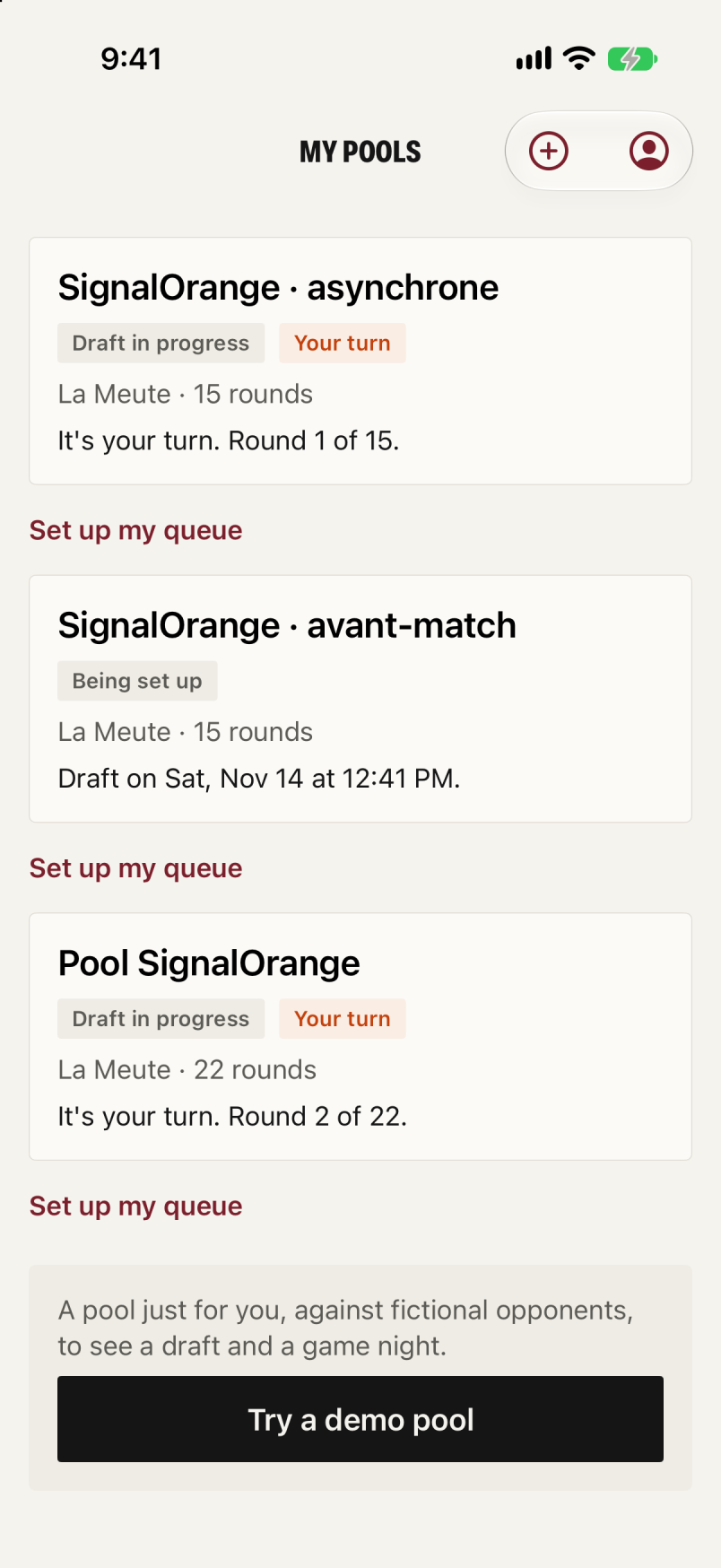 |
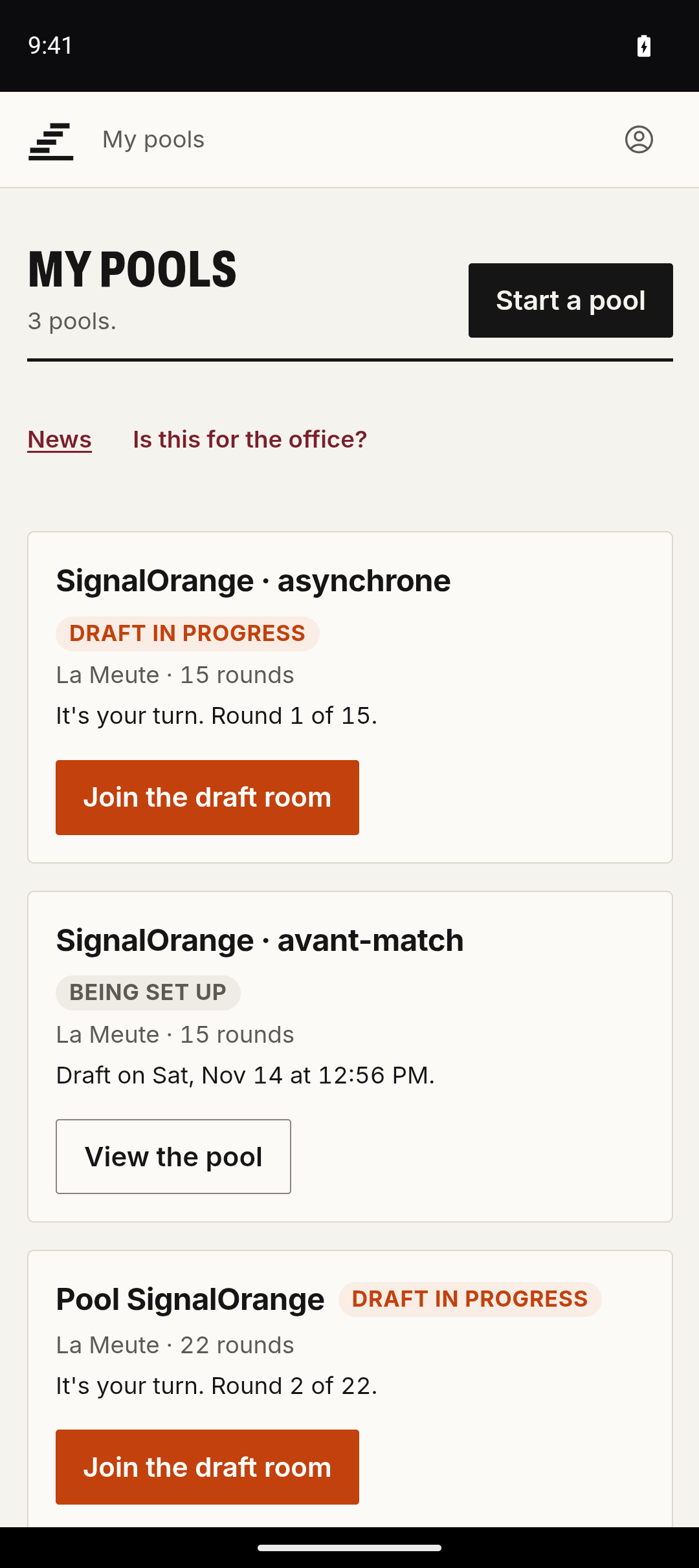 |
Your account
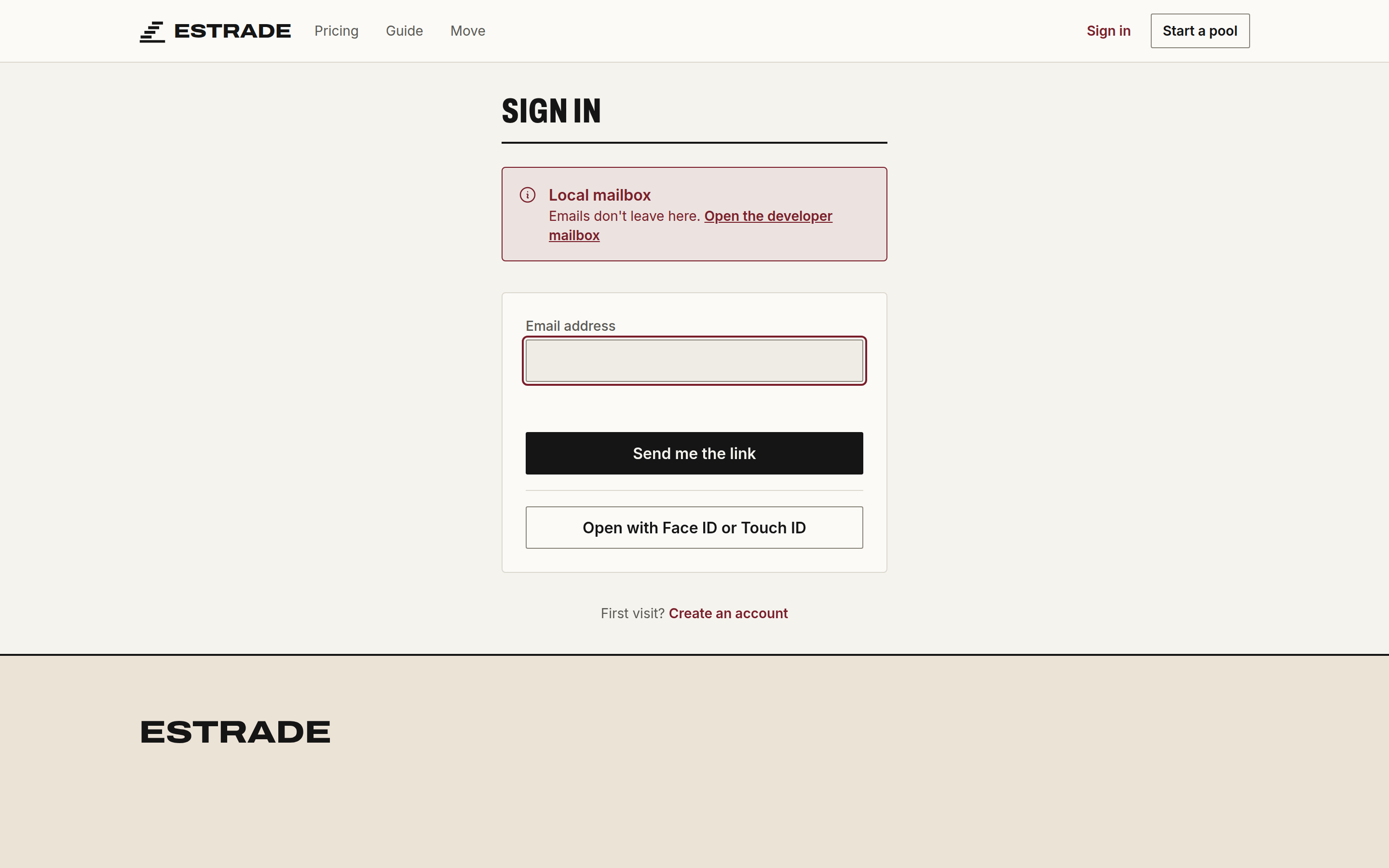
Create an account and sign in
There is no password. You enter your email, Estrade sends you a link, and that link signs you in.
- On
estrade.ca, click Sign in, then Create an account if it's your first time. - Enter your email address and click Send me the link.
- Open the email and click the link. It only works once.
On the web, you can add a passkey in My account. You then sign in with Open with Face ID or Touch ID.
Join a pool
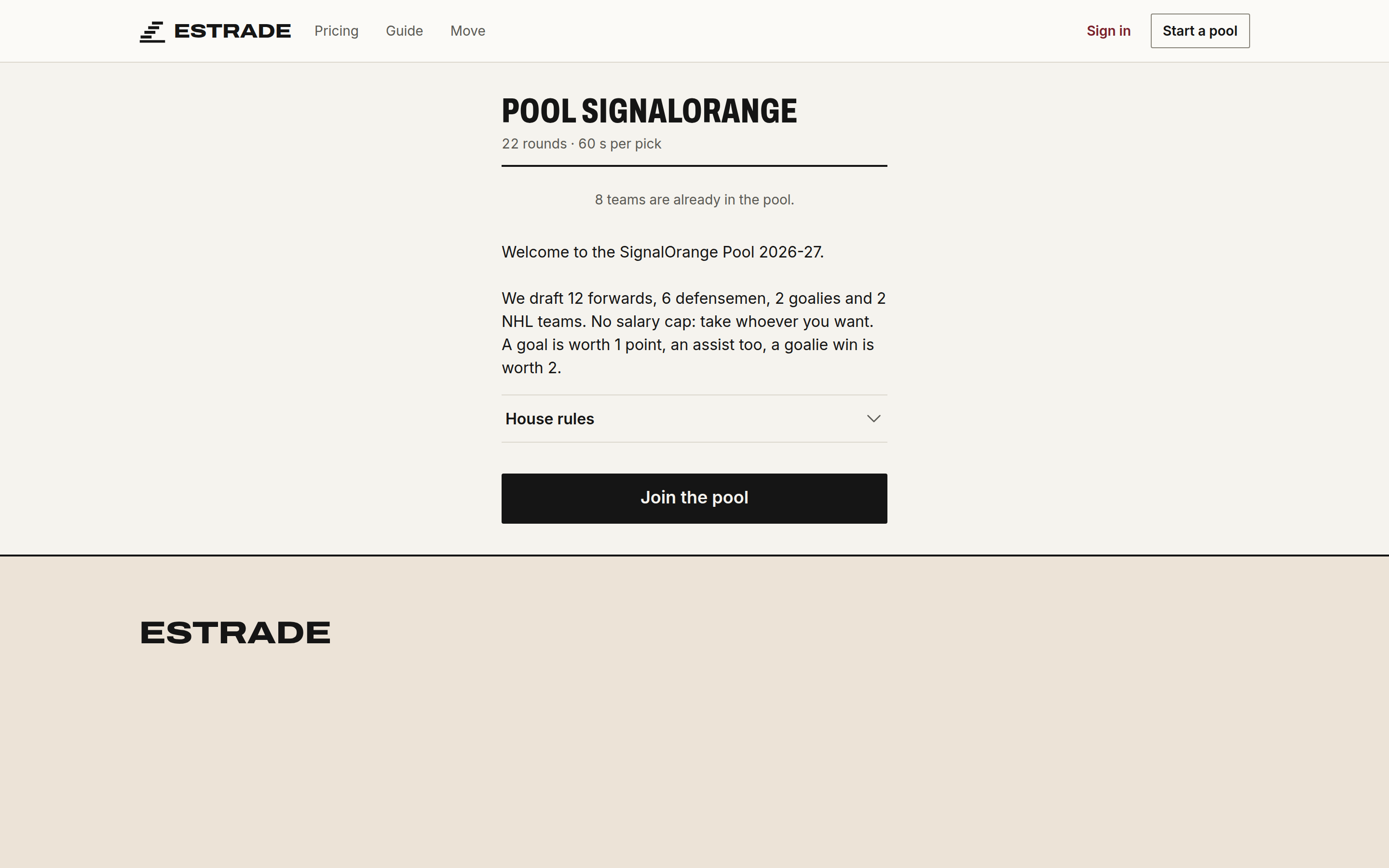
Your commissioner sends you a link like estrade.ca/j/pool-signalorange. The page shows the pool's name, its commissioner and its format, even without an account.
- Open the link.
- Enter your email, then click the link you receive. It brings you back to the pool.
- Choose your team name.
With the iPhone or iPad app, once it's out, the same link will open the pool. You can also tap +, then Join a pool.
My account
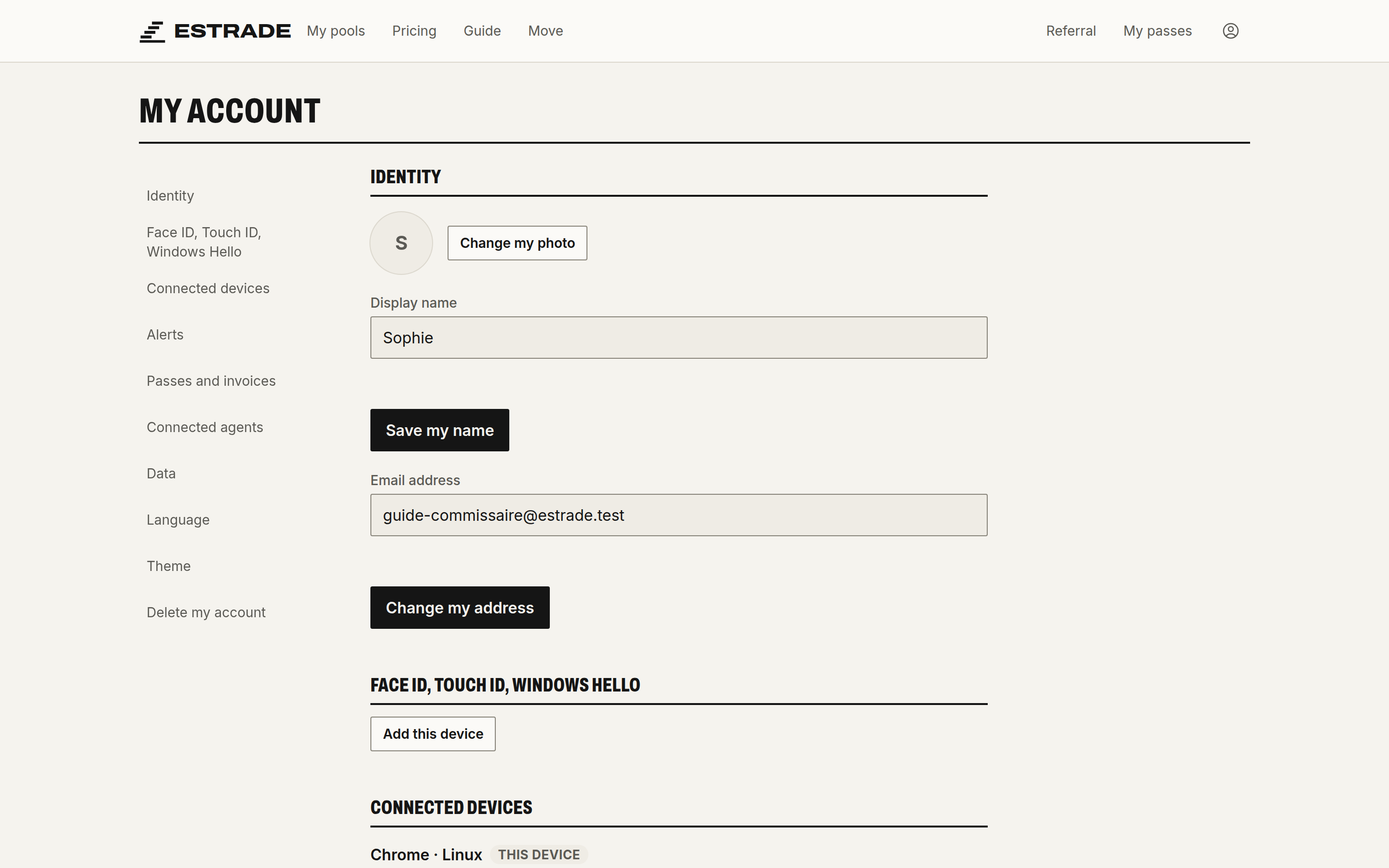
Your account menu, at the top right, leads to My account: your name, your photo, your passkeys, your connected devices, the theme (system, light or dark) and account deletion. The same menu leads to Referral, My passes and Notifications.
Referral
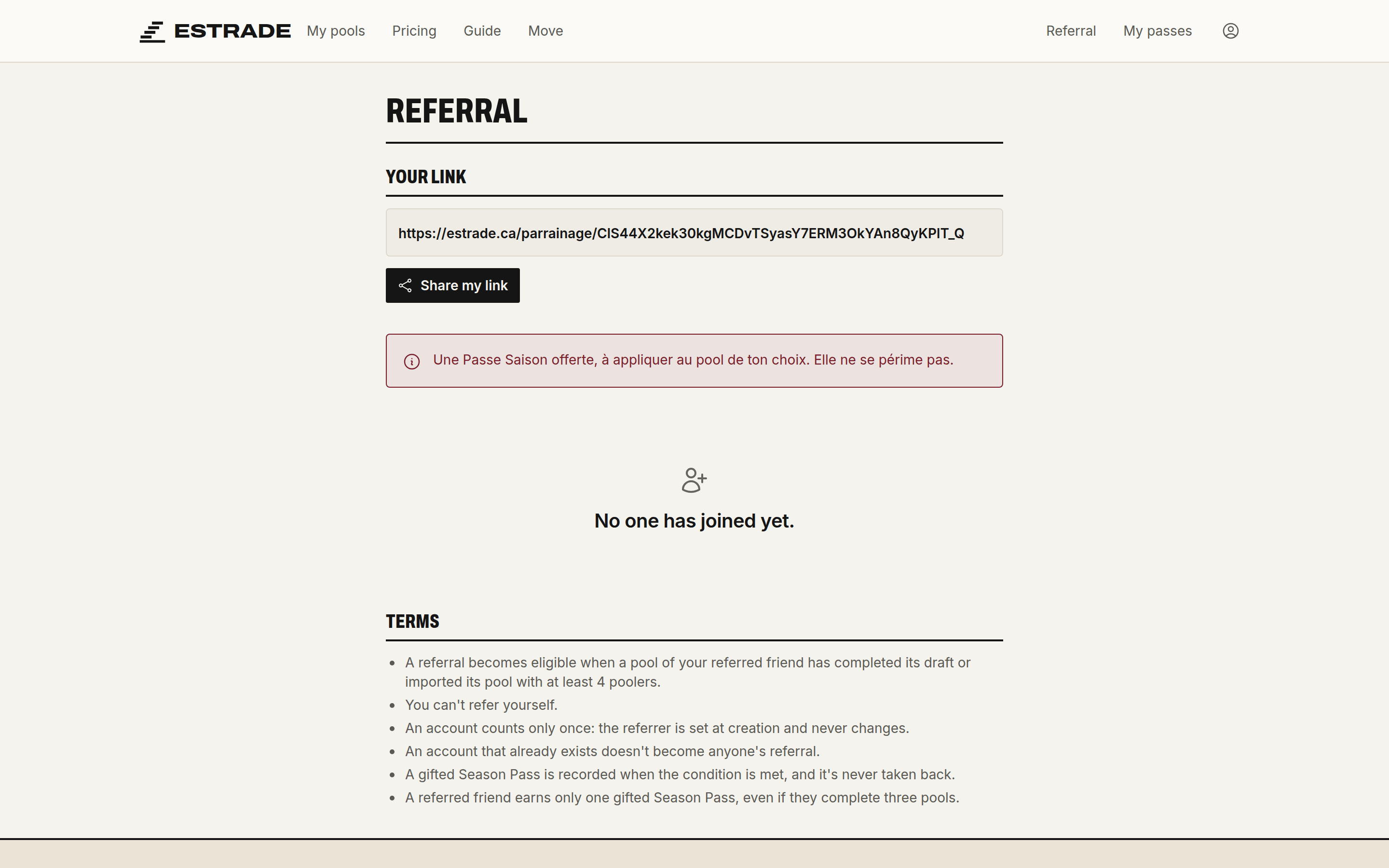
Your referral link is on the Referral page. When someone signs up through that link and their pool finishes its draft, or imports a pool in progress, with enough poolers, you get a Season Pass. The page gives the conditions.
Create a pool (commissioner)
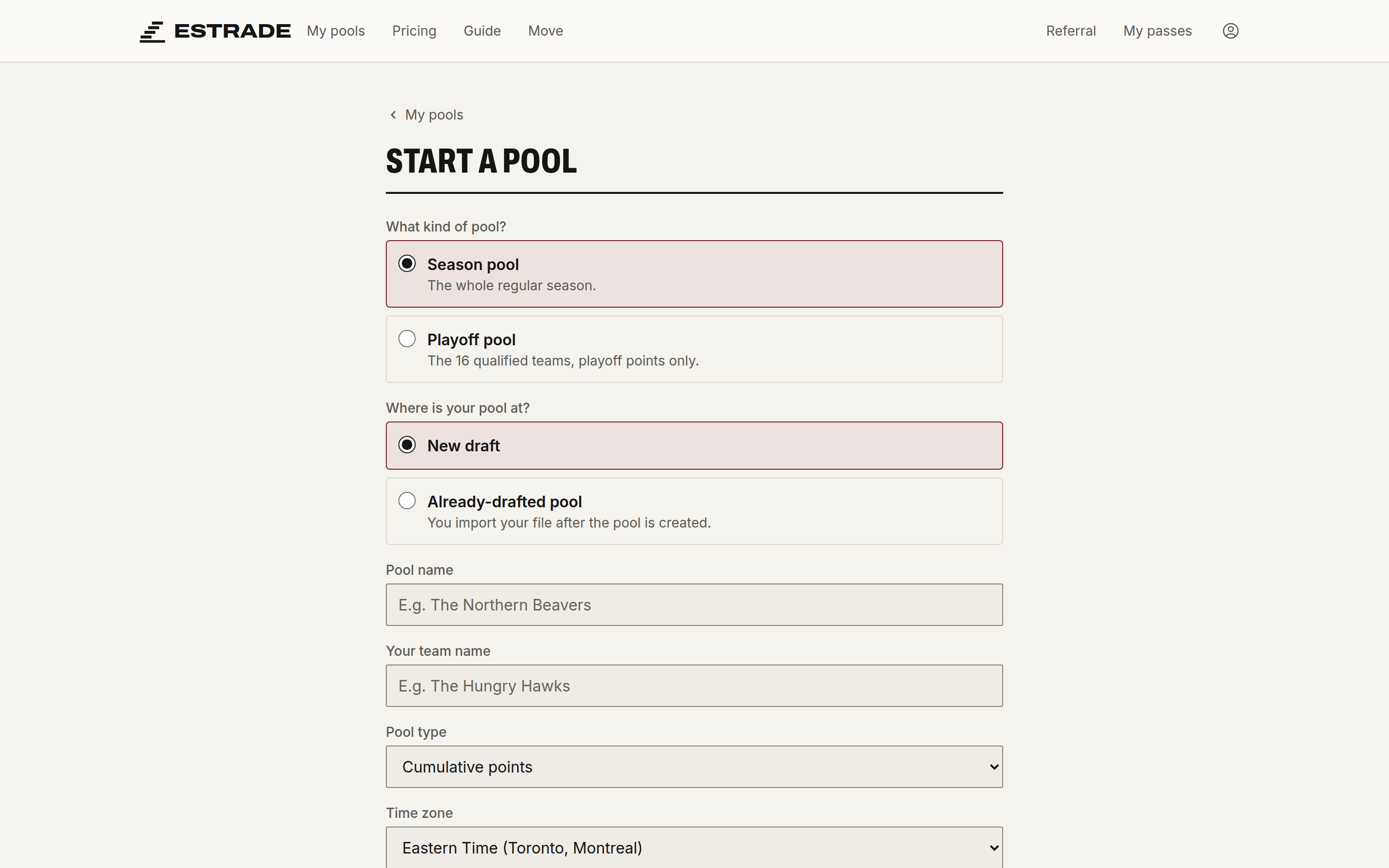
Start a pool
- In My pools, click Start a pool.
- Choose Season pool or Playoff pool (the playoffs).
- For a season pool, choose New draft, or Already-drafted pool if your teams were already made somewhere else (import a pool in progress).
- Name the pool and your team, then choose the Pool type:
- Cumulative points: every point your players score counts, all season.
- Head-to-head: a matchup against another pooler every week.
- Grid (box pool): no draft, everyone picks one player per box (the grid).
- Choose the Time zone. It's the pool's time for everyone: draft date, poll, grid deadline, the night a game counts, head-to-head weeks, months for trade limits. It can't be changed after the pool is created.
- Click Create the pool. Estrade gives you the invitation link.
Practice draft creates a pool to test the draft. At the end, nothing is kept, and it doesn't need a pass.
To try it without your group, Try a demo pool in My pools opens a pool against made-up opponents.
The pass
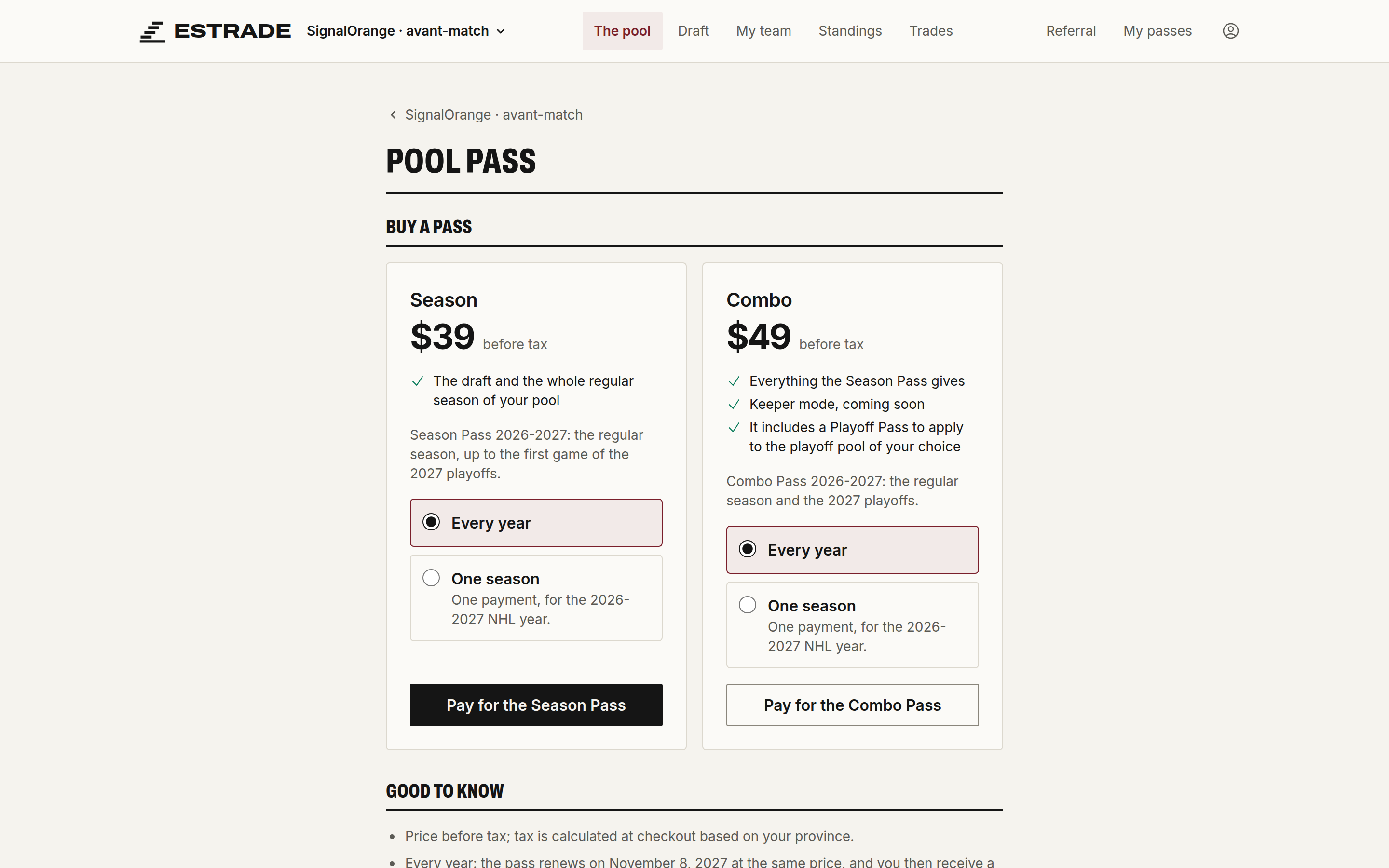
Playing is free for poolers. The commissioner pays for one pass per pool: the Season Pass, the Playoff Pass, or the Combo Pass, which covers both.
Creating the pool, inviting your group and setting up the draft cost nothing. The pass is paid before you start the draft: click Activate the pass on the pool home, or open Pool pass in the pool menu. With the iPhone or iPad app, once it's out, you'll buy the pass in the app.
Invite your group
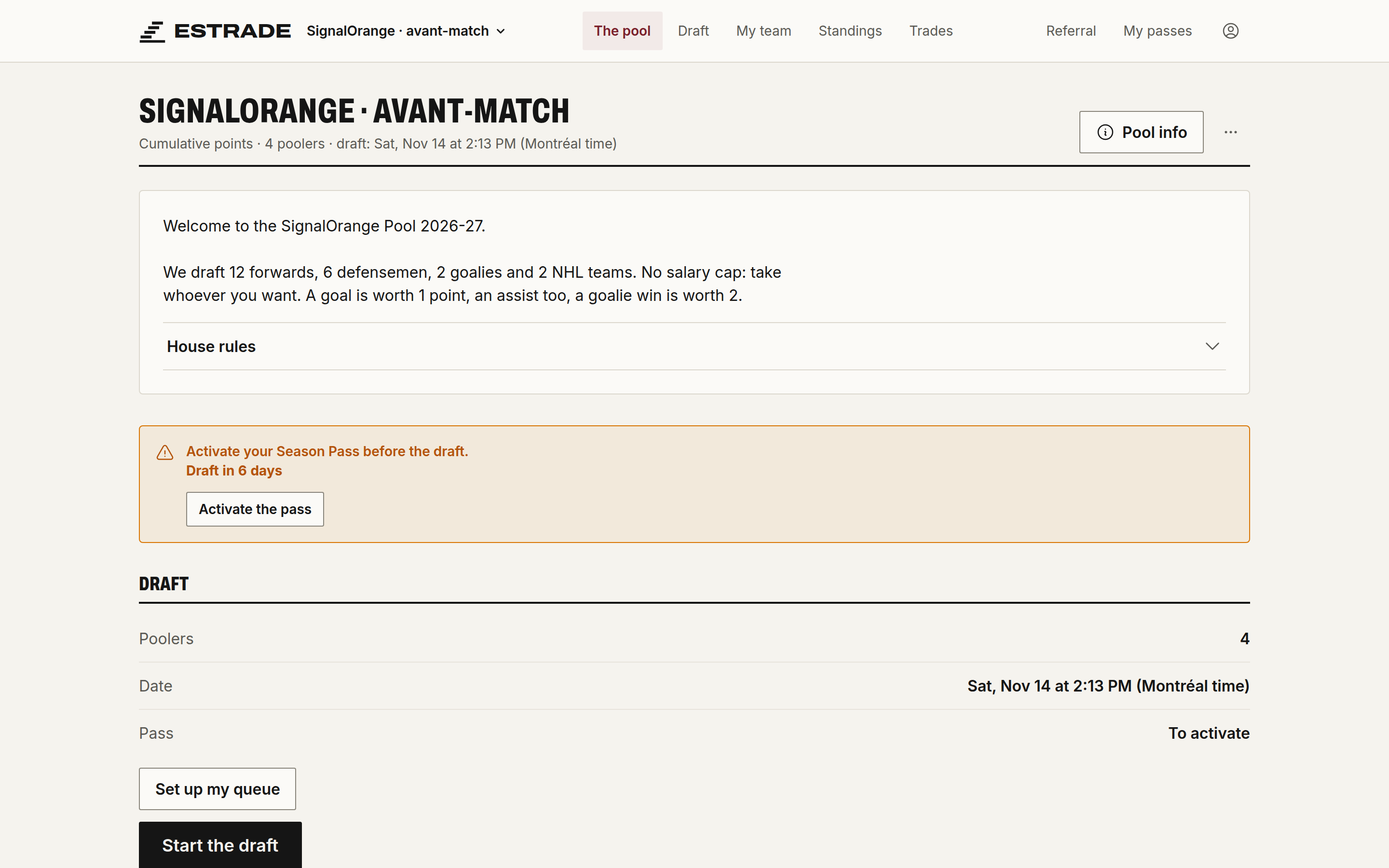
The invitation link is on the pool home, under Pool info. Send it by text, email or Messenger. Each pooler who opens it lands on the invitation page. You can also invite by email (invitations and spots without an account).
Set up the pool
Before you start the draft, go through the Pool settings: lineup, draft, cap, scoring and season rules. The draft, the order and the cap lock at the first pick. Each setting is explained in pool settings.
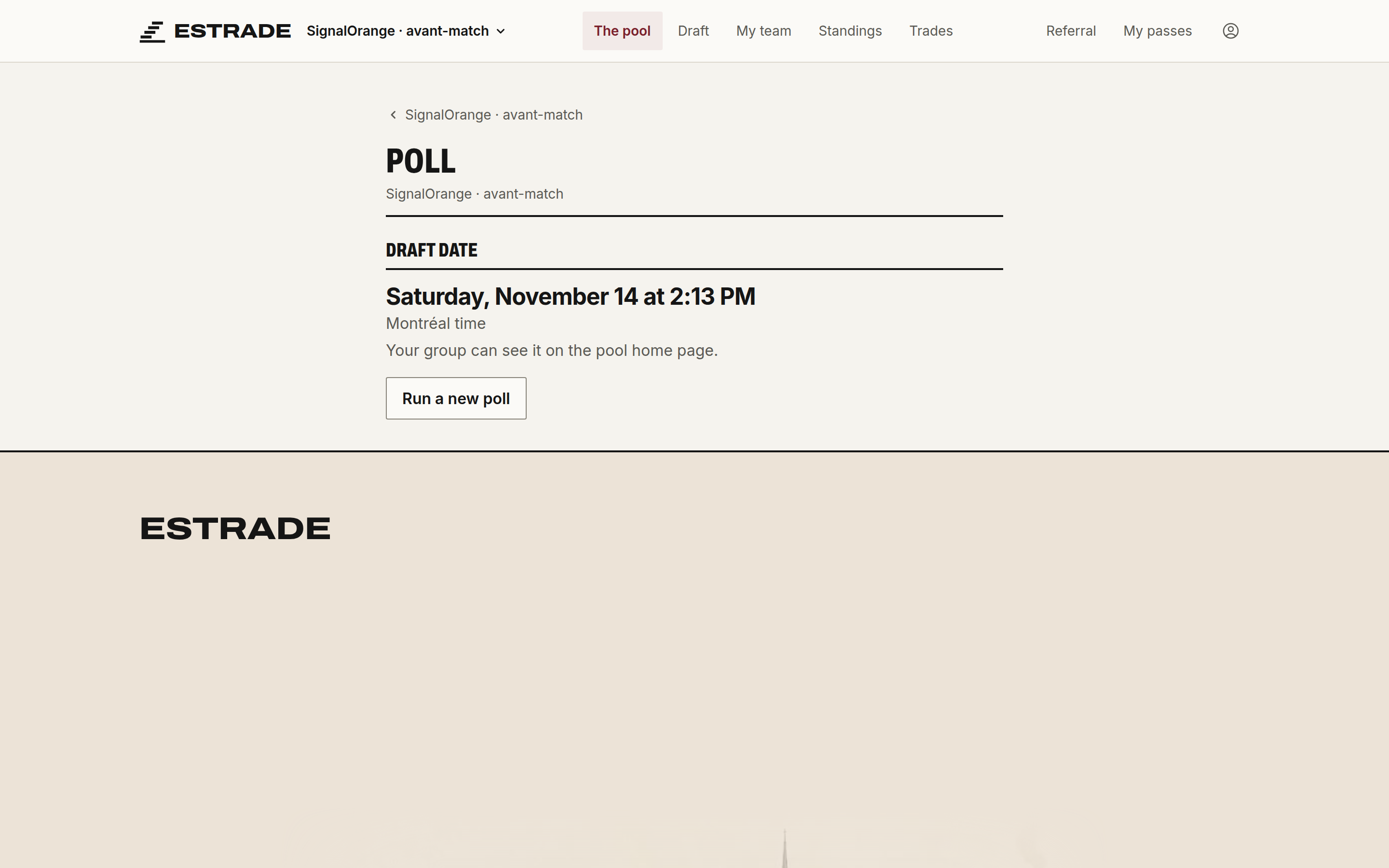
Find a date
In the pool menu, Find a date opens the poll. Suggest up to three slots and click Send to my group. Everyone checks what works for them. When a date stands out, click This is the date.
Draw the order
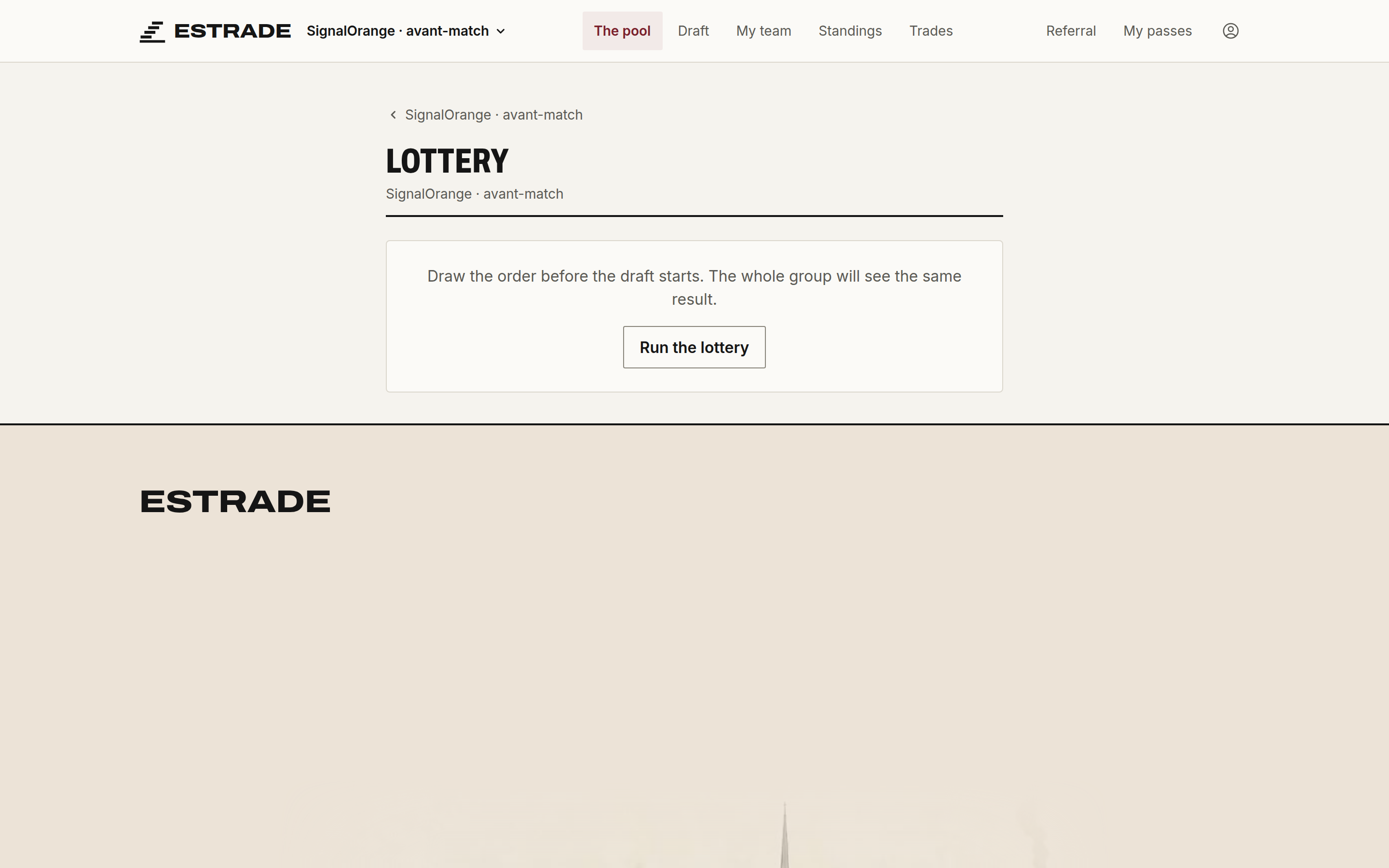
If the order is drawn at random, open Watch the lottery again in the pool menu, then click Run the lottery. Your whole group sees the draw. You can click Replay as long as the draft hasn't started.
Import a pool in progress
Your pool was already drafted somewhere else? Import your teams and play the rest of the season here. The import is done on the web, on a new pool, before any draft.
- In Start a pool, choose Already-drafted pool, set up the pool and create it. You land on the import screen. A pool that's already created, with no draft, also opens it from the pool menu: Import a pool in progress.
- Click Download the template and fill in one row per player:
pooler,courriel,joueur,equipe_lnh,position. The email is optional; a team without an email is managed by you. The position is C, LW, RW, D or G, or EQ for an NHL team. A cell with several positions ("C,LW") keeps the first position it recognizes. A French Excel CSV, with semicolons, works as is. - Choose your file under CSV file, or copy the table from a spreadsheet or a web page and paste it under Or paste your table, then click Read the table. The first row must be the template header. Change file starts over.
- Under To fix, each problem shows up with its row in the file: choose the right player or NHL team, search for the player, or click Remove the row. Your fixes move under Fixed, where Cancel undoes them. Nothing is written while a problem remains.
- Under Teams, check That's me on your team if your email isn't on it.
- In a points pool, enter under Starting points the points each team already has, up to yesterday's games, with a Reason of 3 to 140 characters. They go into the adjustment log, which everyone can see. In head-to-head, enter instead under Starting record each team's wins, losses and ties, up to the Sunday before the week of the import, with the same Reason. Earlier weeks aren't replayed and their points scored don't carry over: the tiebreaker (total points scored) only counts the weeks played here.
- Click Import the pool and confirm. The pool moves into the season. Each pooler who has an email in the file, and no spot in the pool yet, gets an invitation tied to their team. The import can't be undone.
Preparing the import costs nothing; the Season Pass is paid before the import is applied. An imported pool has at most 20 teams. A player missing from the NHL catalogue, such as an AHL prospect, can't be imported: remove their row.
Before the draft
The draft rules, one by one: Draft.
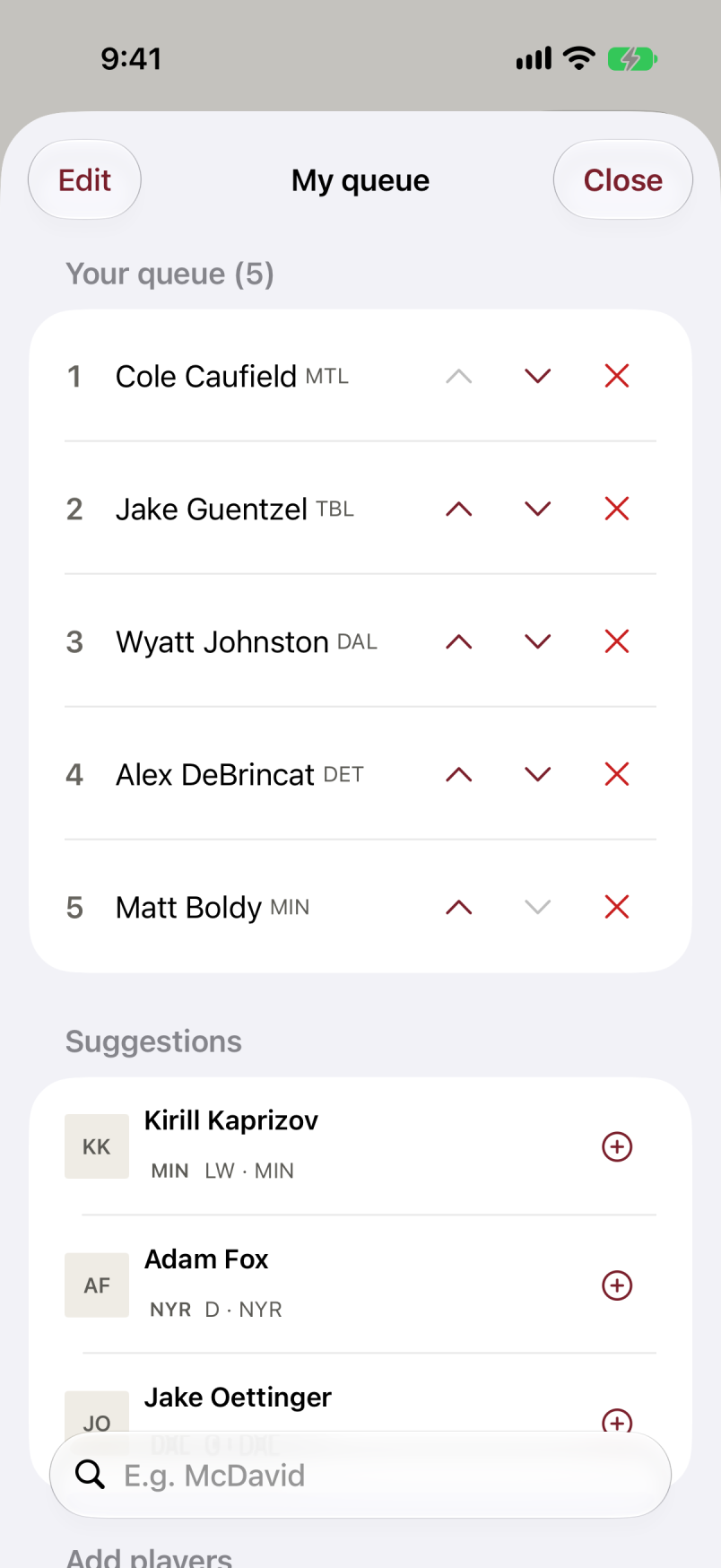
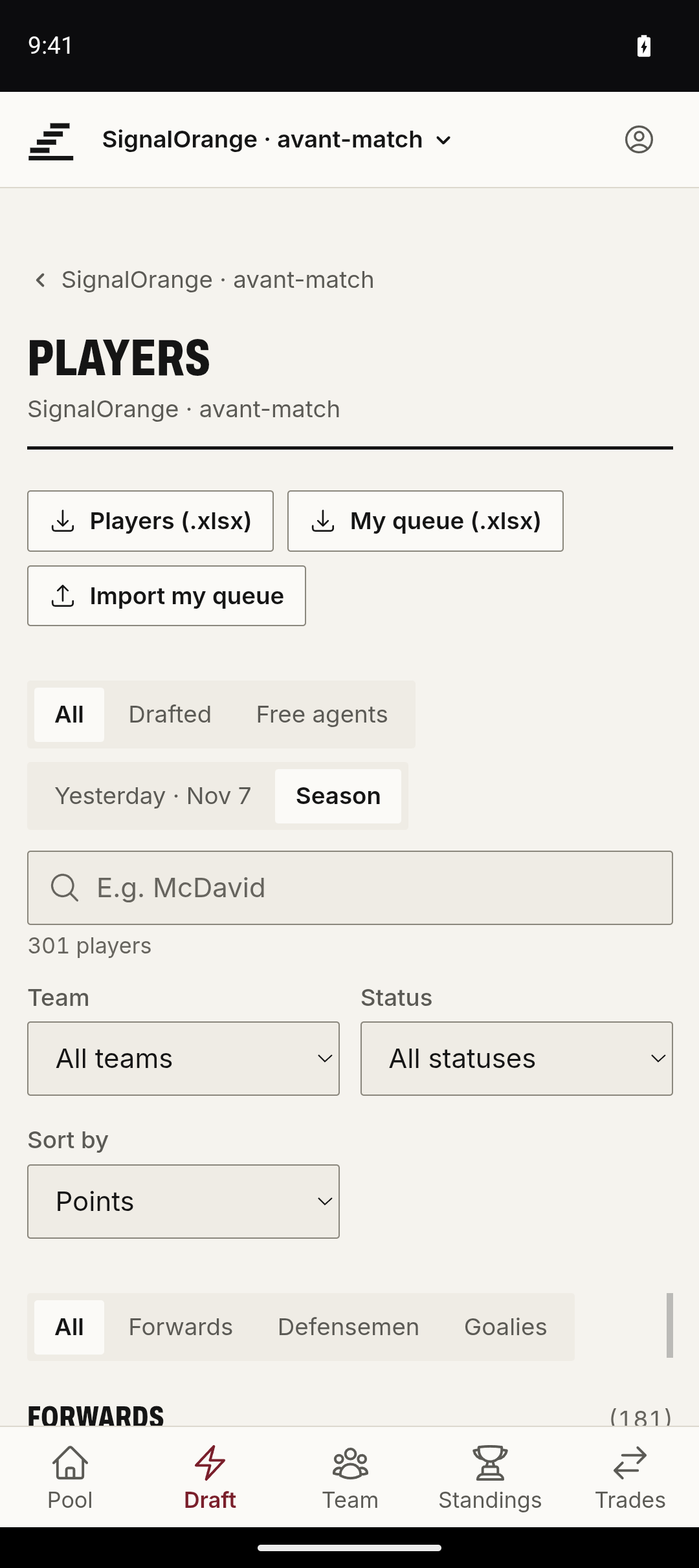
Set up your queue
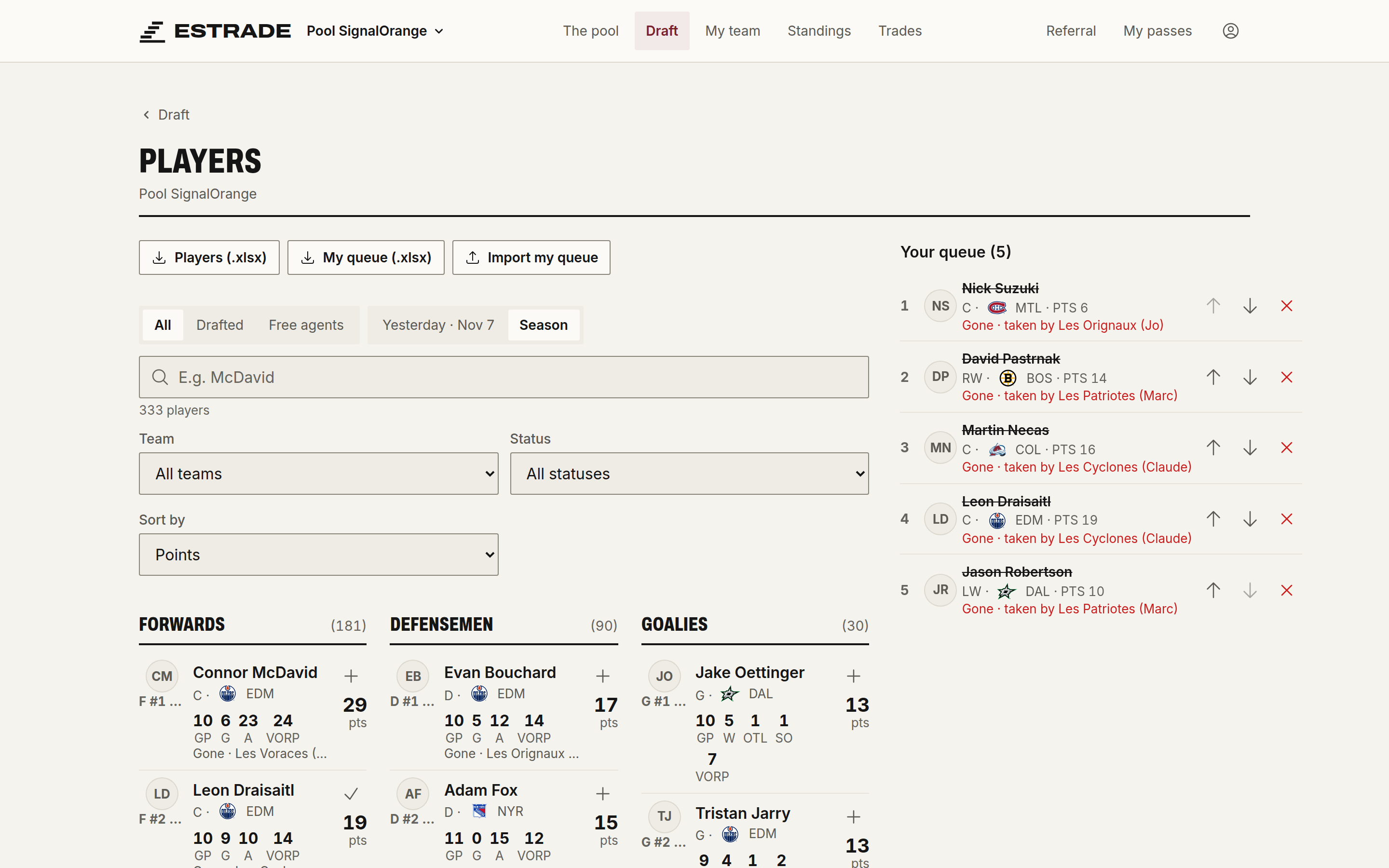
Your queue is your list of players, in your order of preference. When your clock runs out, Estrade drafts the first player in your queue who is still available.
- On the pool home, click Set up my list. With the iPhone or iPad app, once it's out, you'll tap Set up my list under the pool, in My pools.
- Filter by position, team or status, or search for a name.
- Add a player with +.
- Put the players in your order. The first one goes first.
| iPhone | Android |
|---|---|
 |
 |
Auto-pick
Auto-pick from queue is on by default. If you turn it off, Estrade never picks for you: when the clock runs out, the pool's When the clock runs out setting decides whether the turn moves to the next pooler or the pool waits for you. The same happens when your queue is empty.
During the draft
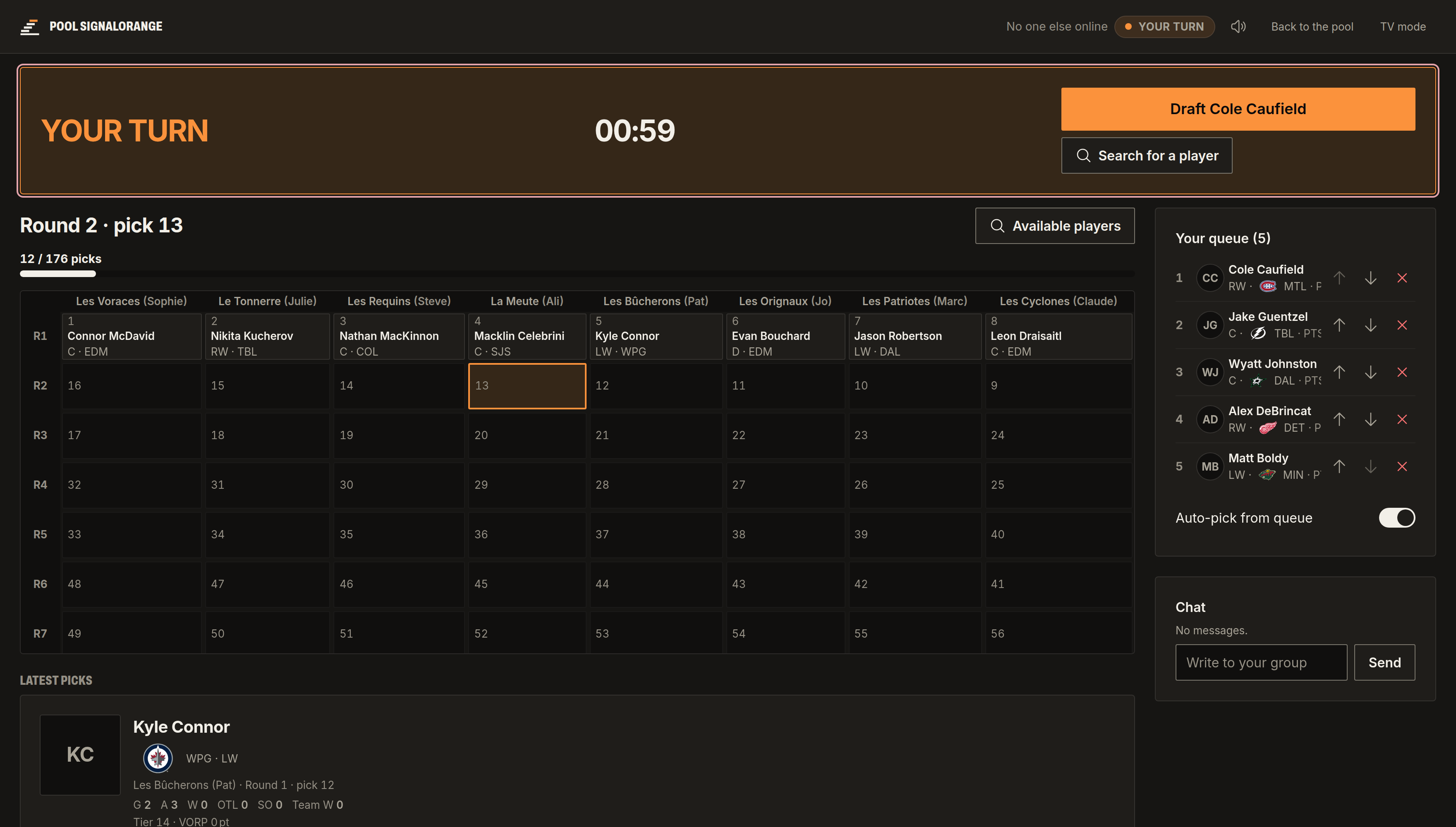
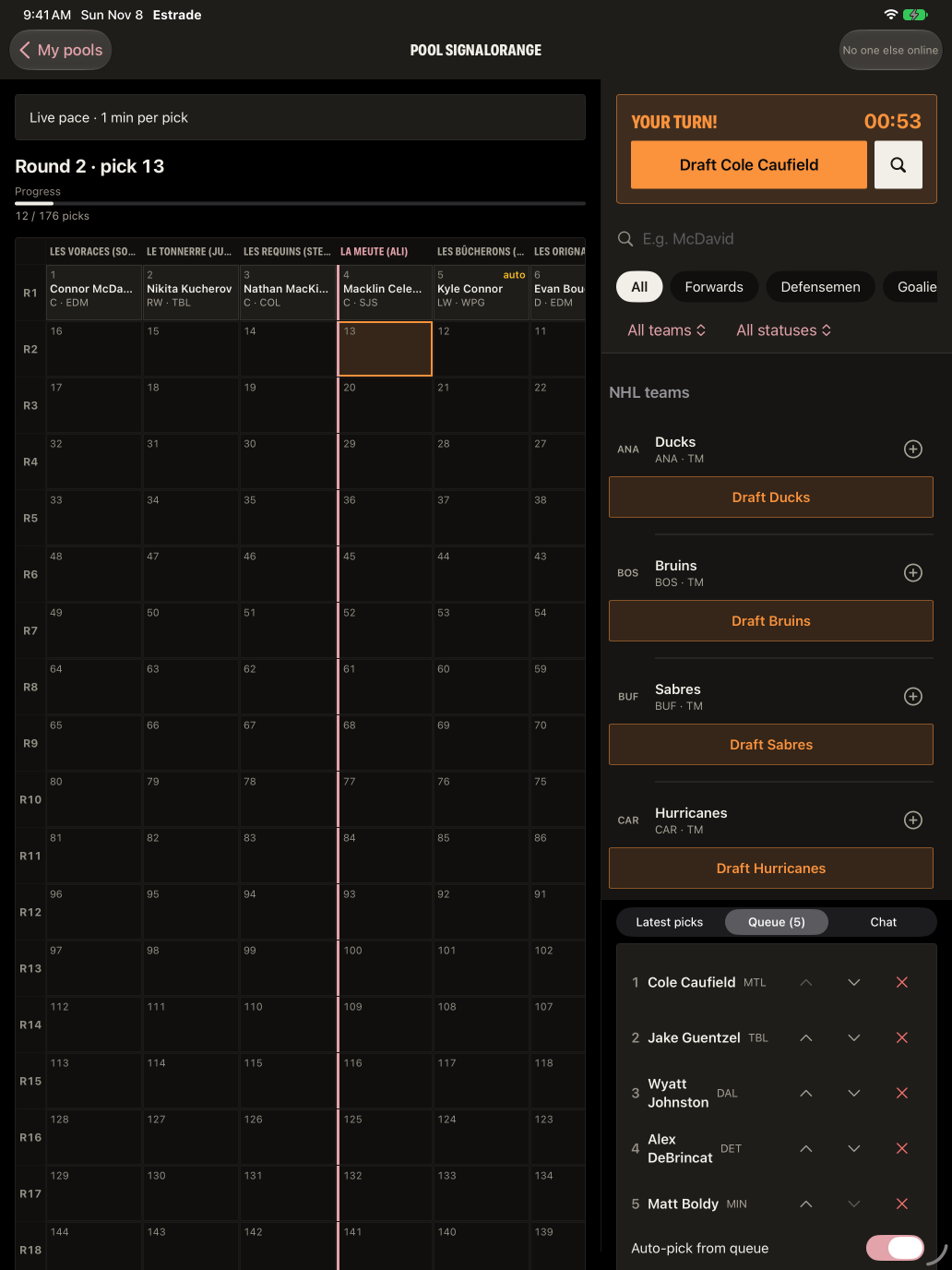
The draft room
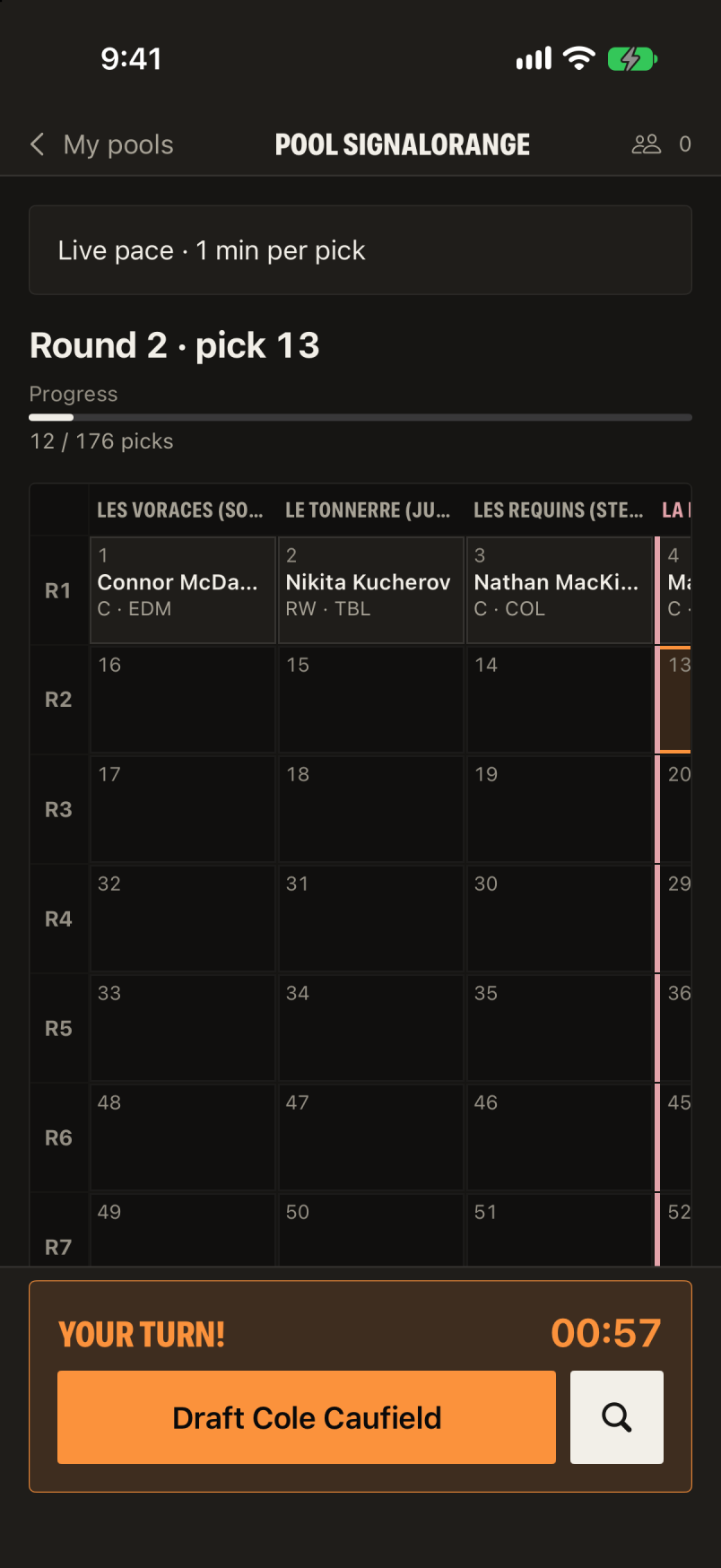
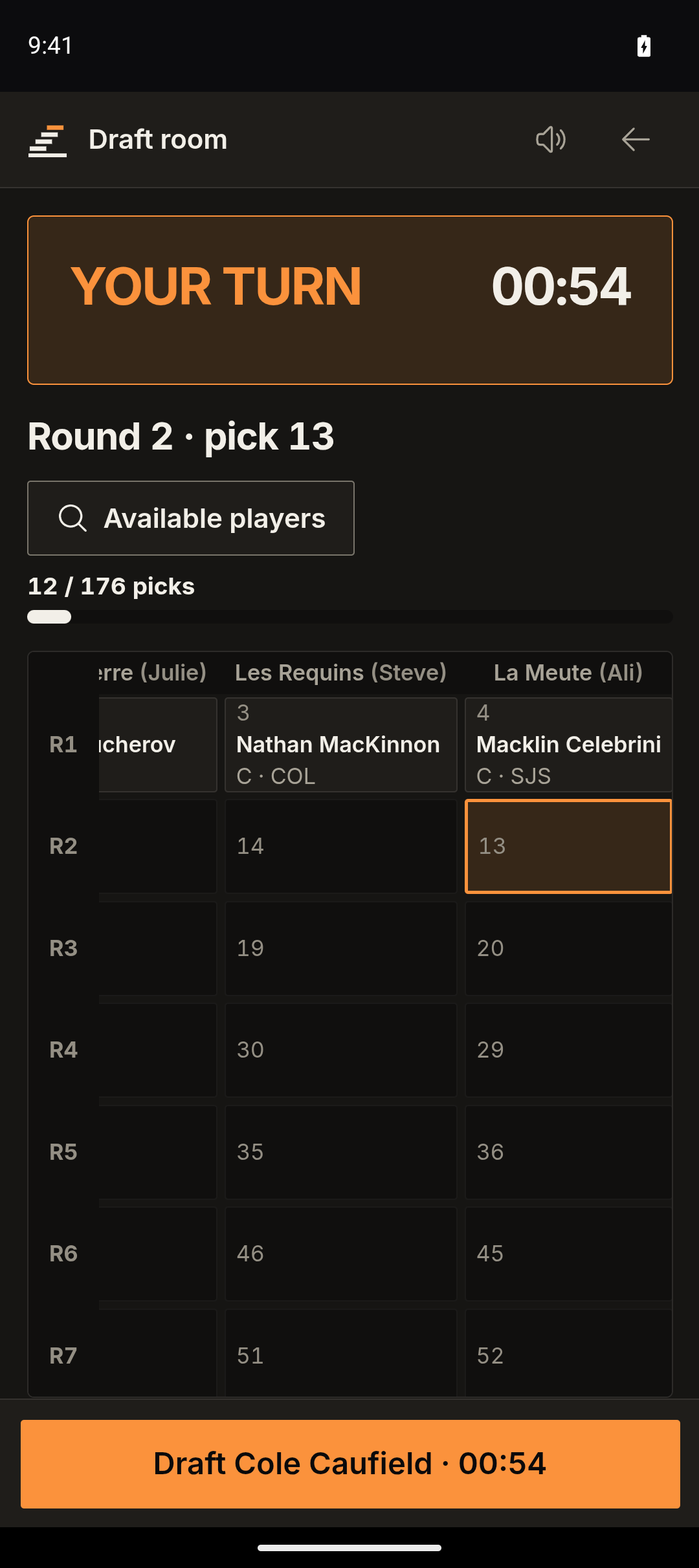
The draft room shows the draft board, the current turn, the clock, your queue and the latest picks. Each pick shows up for everyone in under two seconds.
- Your column is marked with your name.
- When it's your turn, the YOUR TURN banner shows up with the time left.
- The banner's button drafts the first player in your queue. For another player, search for them and click Draft.
On iPad, the available players stay in a column next to the board.
| iPhone | Android |
|---|---|
 |
 |
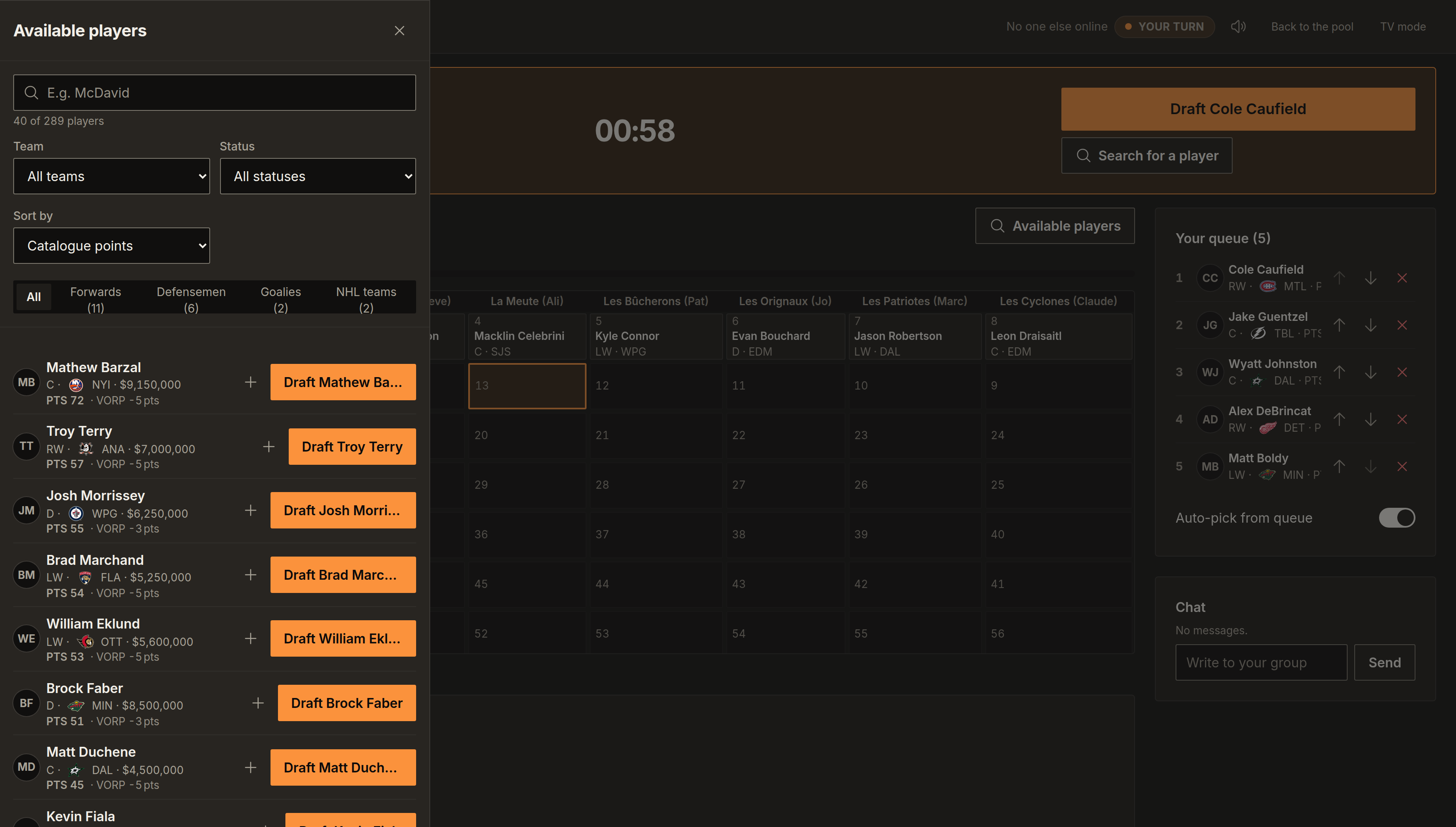
Available players
Available players opens the list of players who are still free, with the catalogue's filters. A player taken while you're looking gets crossed out.
The slow draft
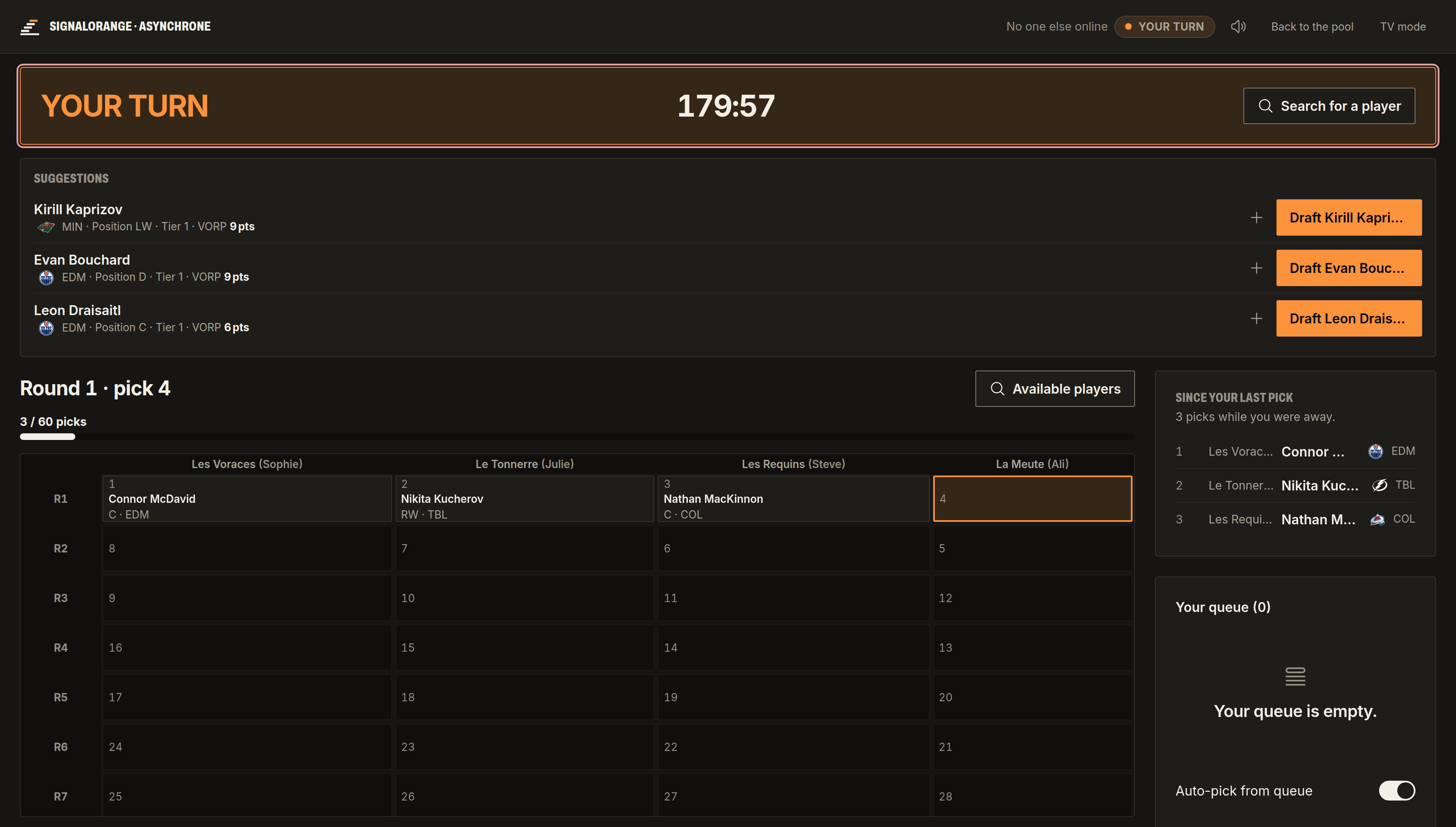
When the draft night ends before the draft does, the commissioner switches to a slow draft. Each pick then lasts a few hours, and Estrade notifies the pooler whose turn it is. The draft room and the queue work the same way.
Commissioner powers
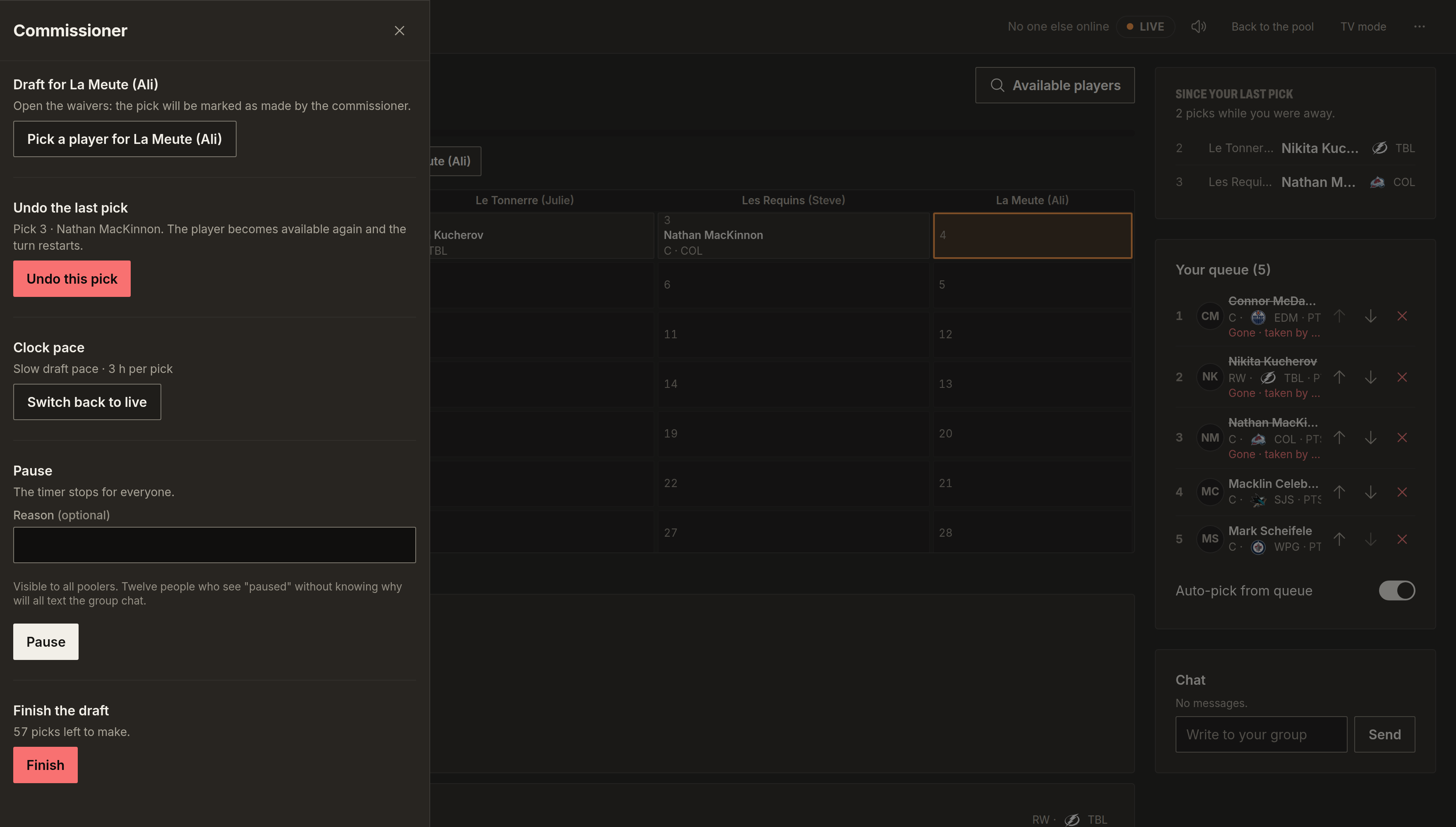
In the draft room, the commissioner opens Commissioner powers:
- Draft for the pooler whose turn it is, if they're away: Pick a player for opens the available players.
- Undo the last pick: Undo this pick makes the player available again and gives the turn back.
- Clock pace: Switch to slow draft or Switch back to live.
- Pause, with a reason everyone sees, then Resume the draft.
- Finish the draft: it shows how many picks are left.
To start over, Reset the draft is in the pool settings (practice, reset and archive).
TV mode
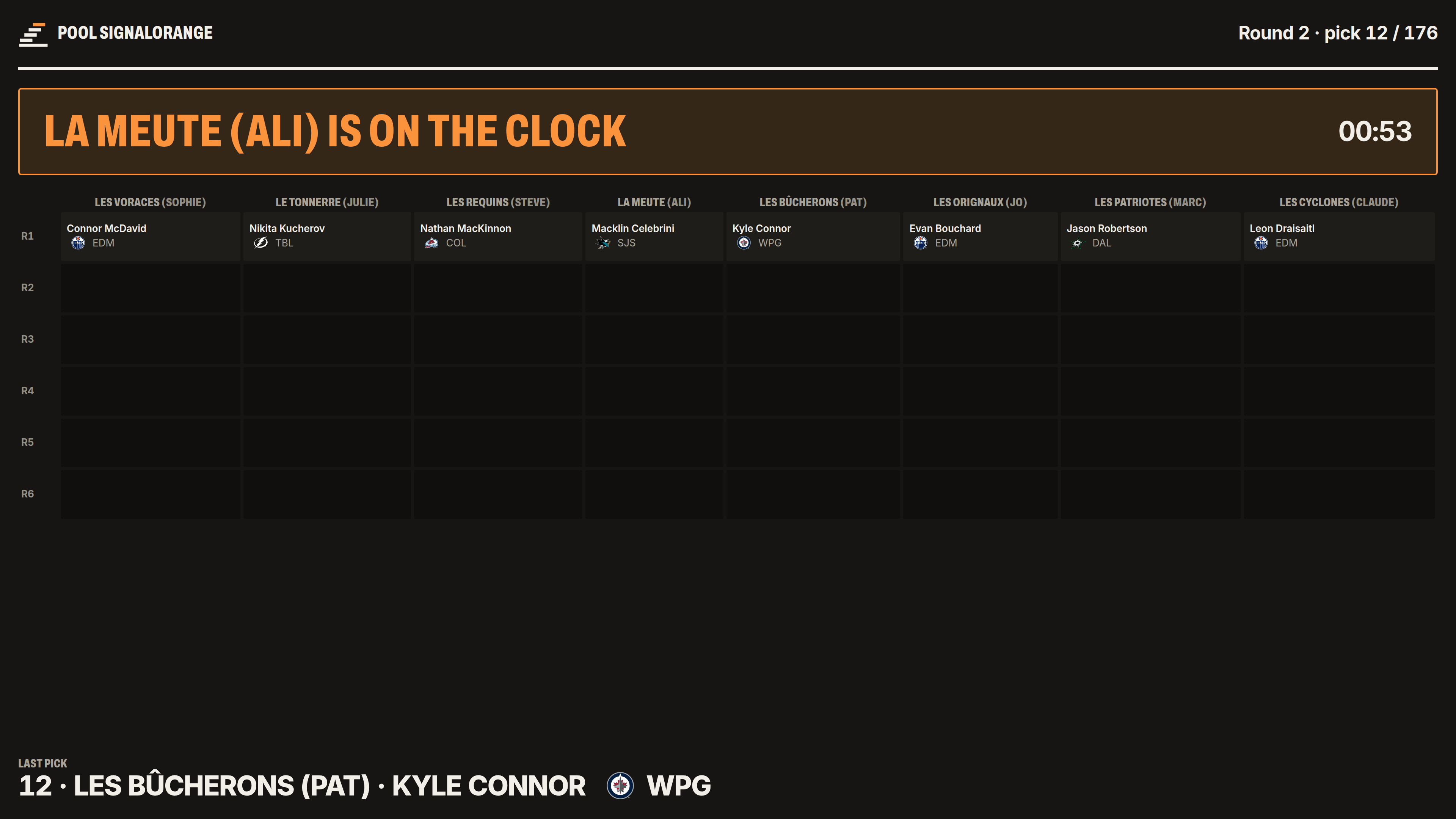
TV mode shows the draft room full screen, for a TV or a projector. There is nothing to click.
The season
Once the draft is over, the Draft tab becomes Games.
To follow injuries and rumours day to day, WebPuck is free and in French.
The pool home
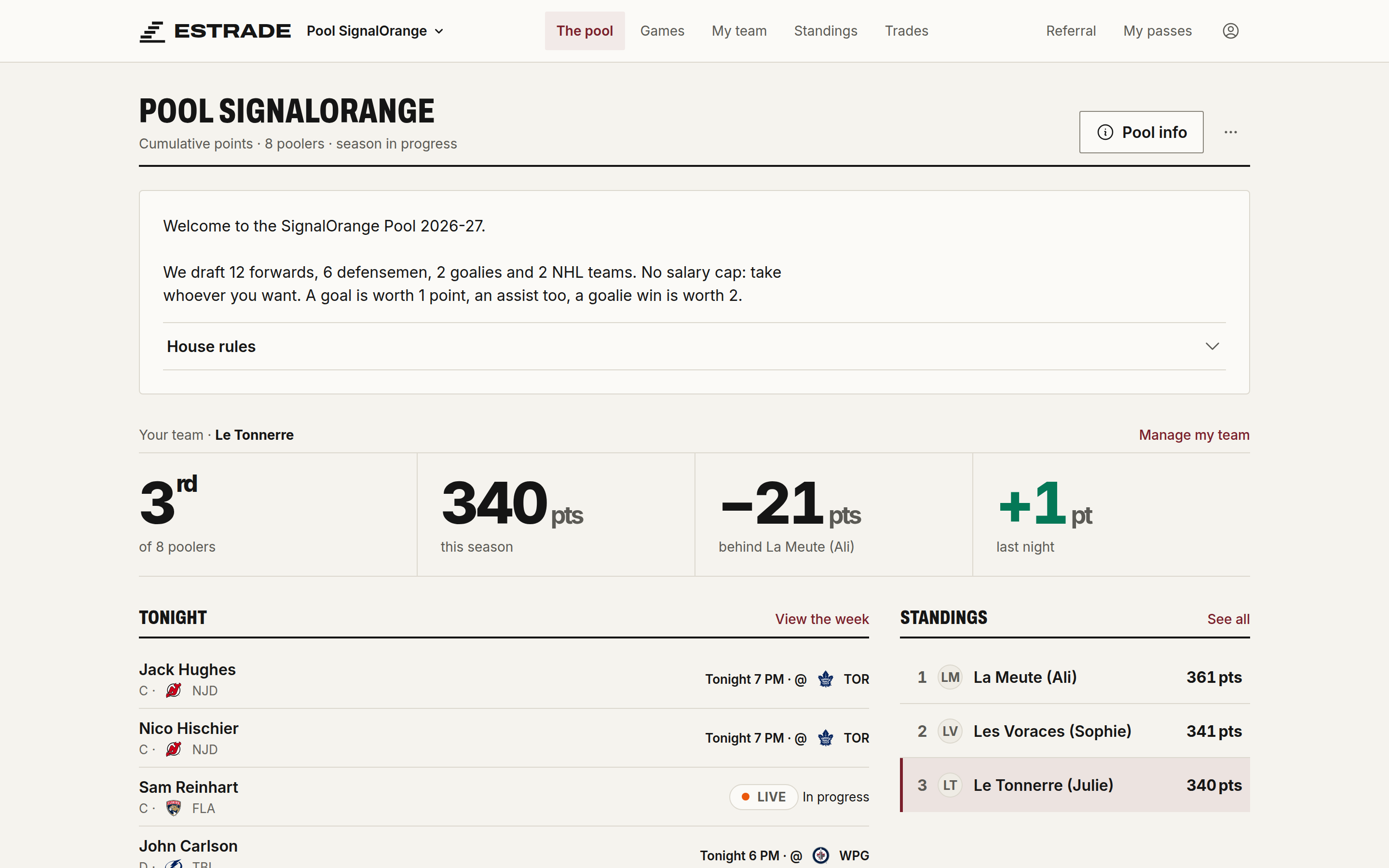
The home shows your rank, tonight's games, the standings, the activity and the latest transactions.
My team
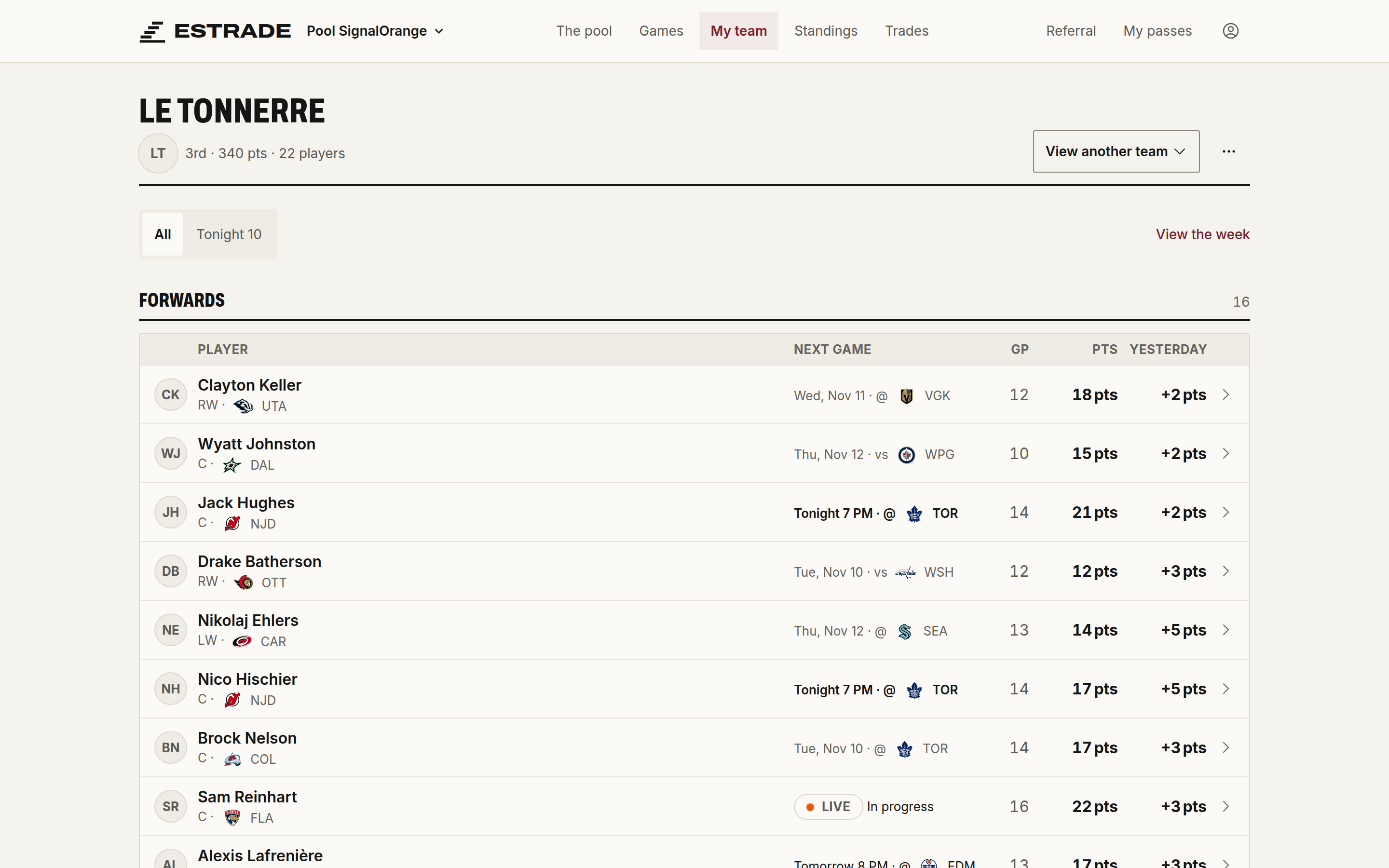
My team splits the Lineup, the Bench and the Injured. To move a player, use the button that names their new spot. Replace opens the free agents, Offer in a trade prepares an offer.
| iPhone | Android |
|---|---|
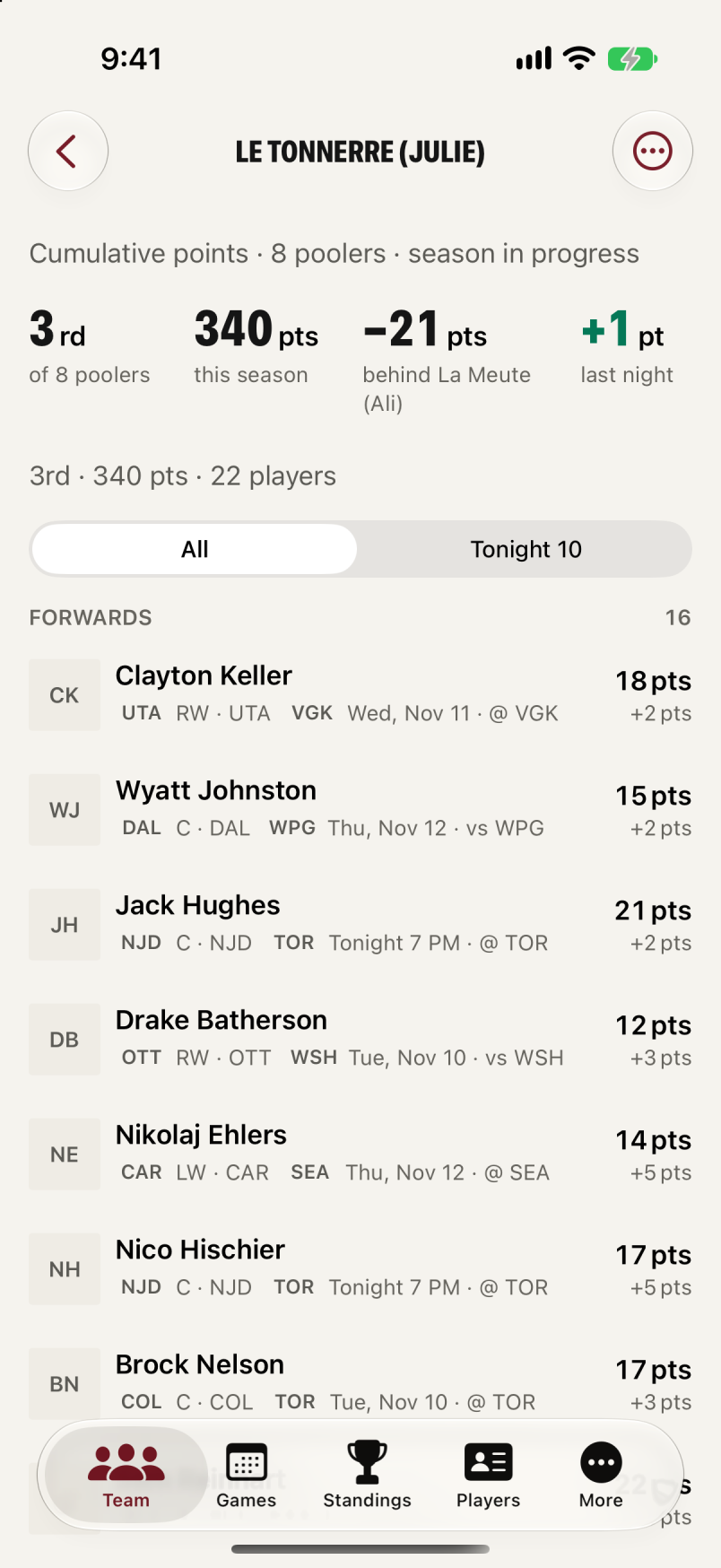 |
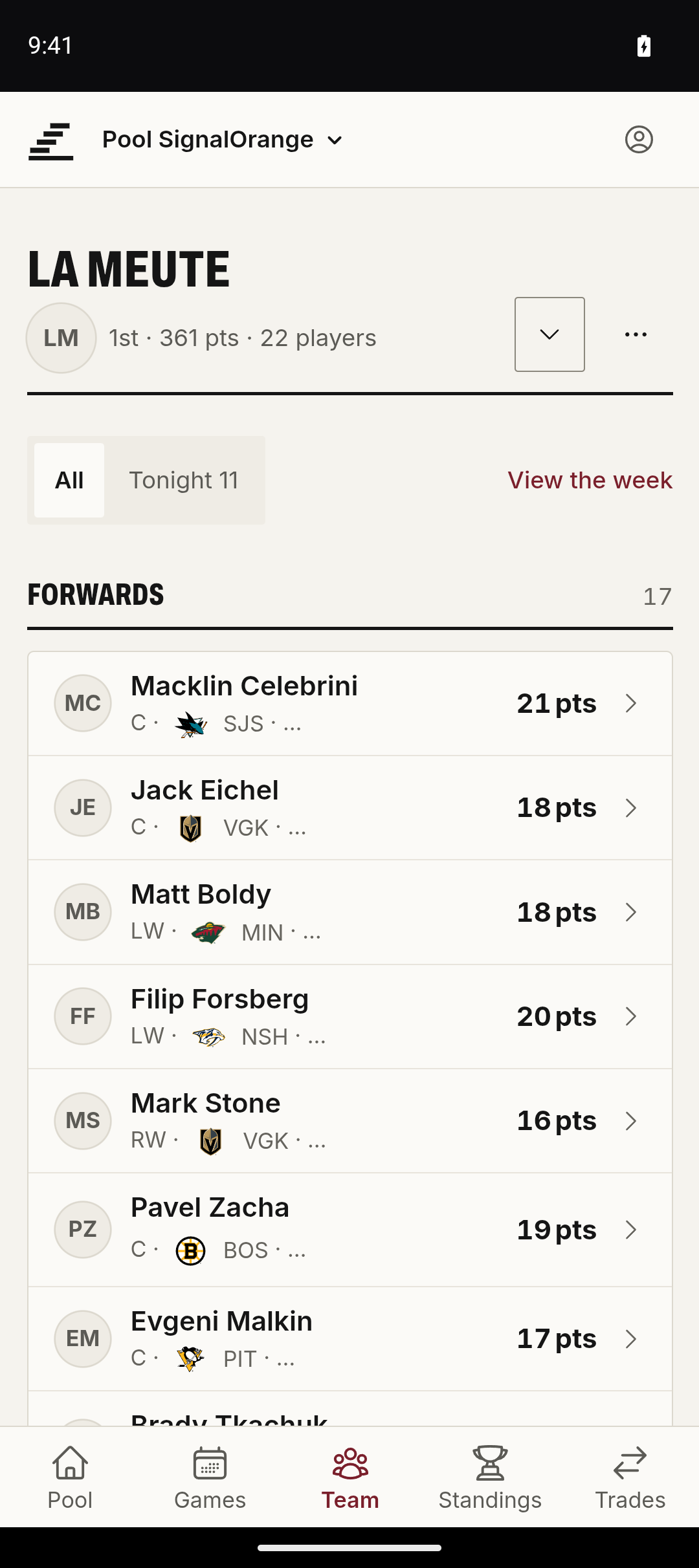 |
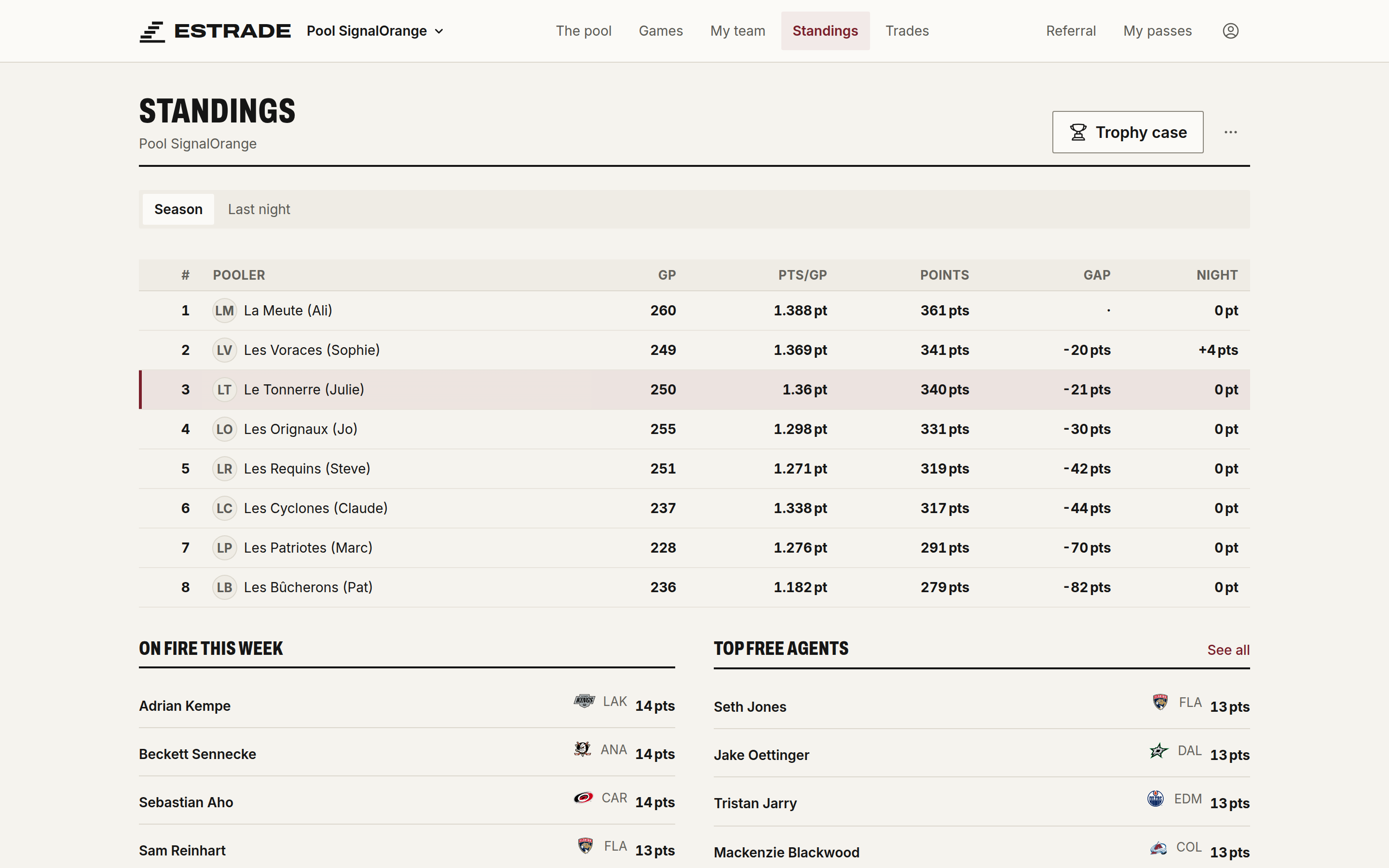
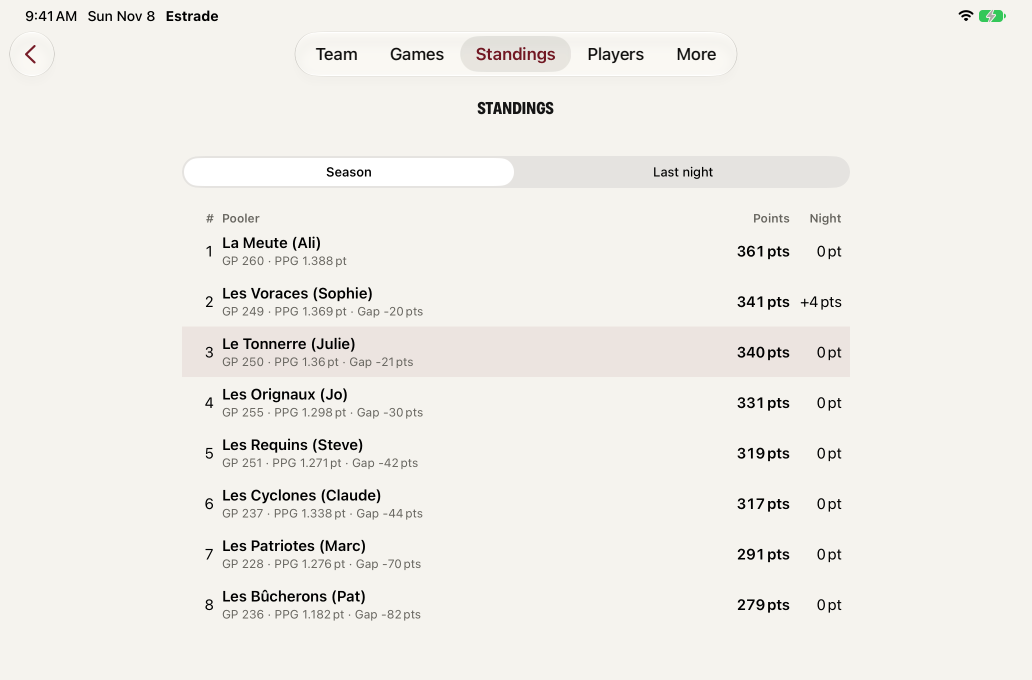
Standings
The standings update during games. Tap a pooler to see their points night by night or their season stats. In head-to-head, the standings also show the week's matchups.
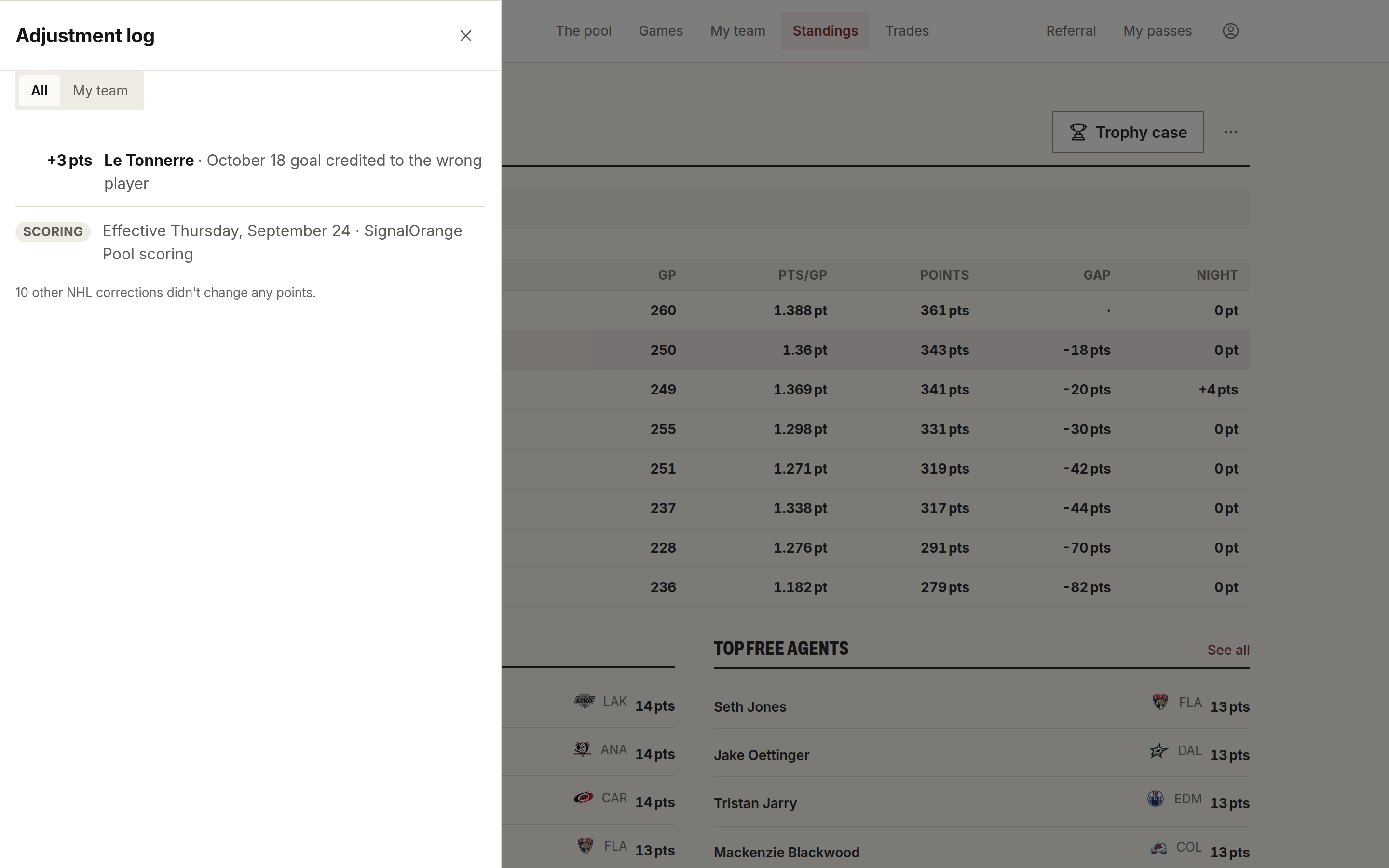
The Adjustment log, in the standings menu, lists scoring corrections, which everyone can see (on the Standings page).
Trades
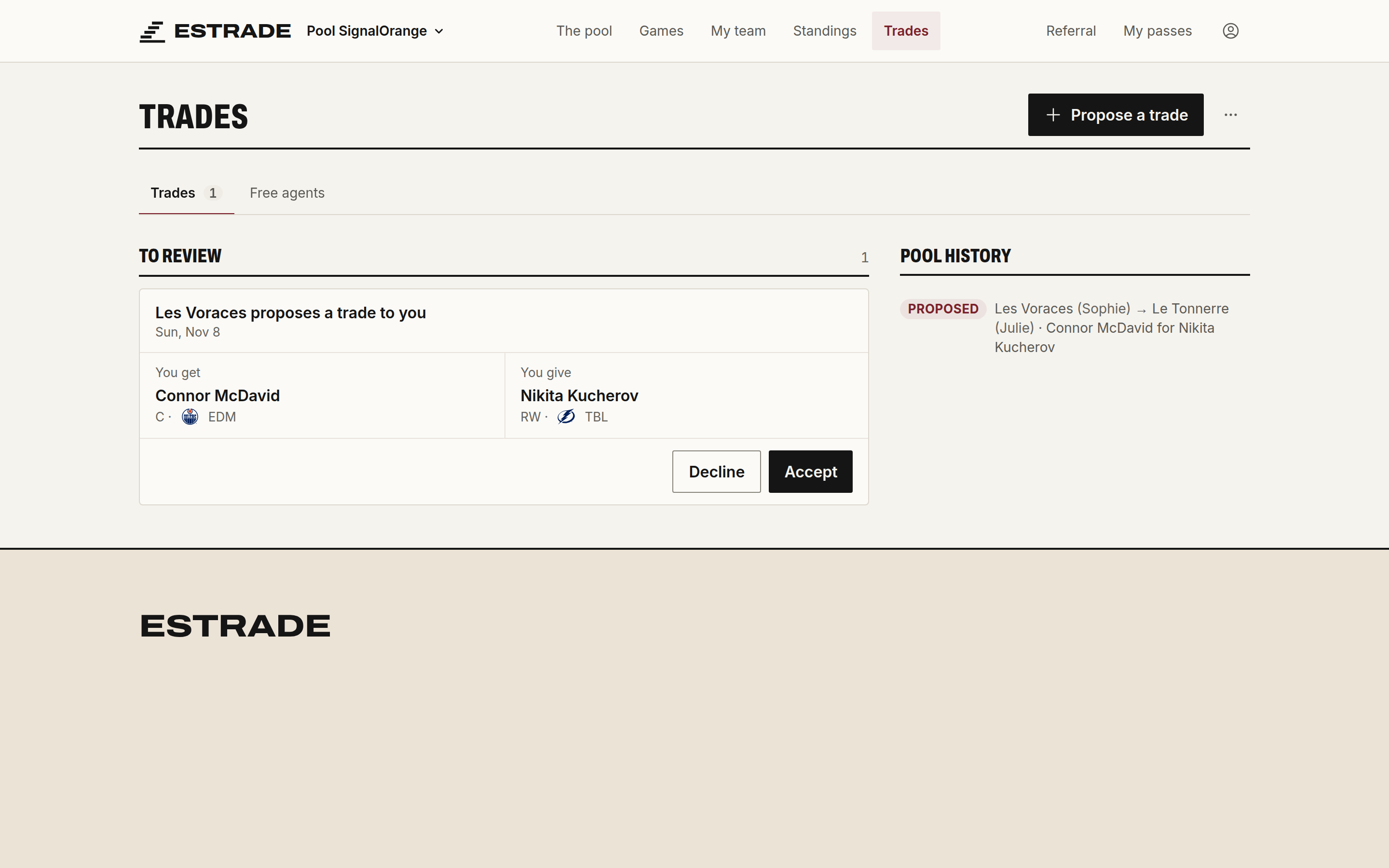
- In Trades, choose the pooler.
- Check what you give and what you get.
- Send the offer. It shows up under My offers.
The other pooler accepts, declines or makes a counteroffer. If the pool has a veto window, the trade goes through at the end of that window. The commissioner can veto it with Cancel trade.
Free agents and waivers
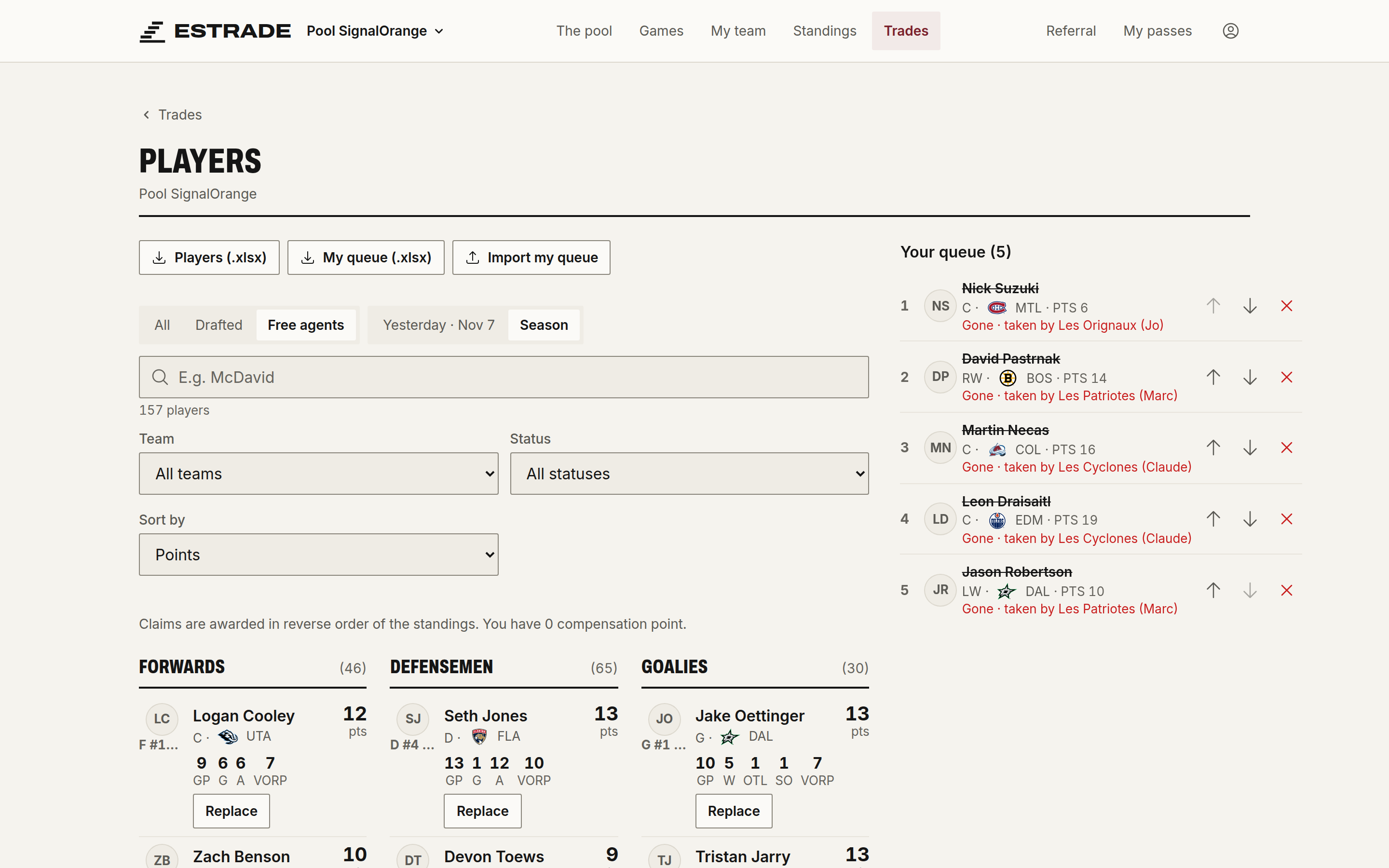
Free agents, in Trades, opens the list of players nobody has. Replace, under a free agent, brings them onto your team in place of one of your players.
If the pool has waivers, your request becomes a waiver claim. It stays open during the claim window. If several poolers claim the same player, the biggest bid of compensation points wins, then the lowest in the standings. The commissioner awards claims under Claims to award.
The playoffs
A playoff pool is played on the 16 qualified teams, with playoff points only. It needs the commissioner's Playoff Pass or Combo Pass.
To create one, choose Playoff pool in Start a pool. From a season pool, Create the playoff pool, in the pool menu, reuses the name and offers to invite the same group again.
A playoff pool has three formats:
- Draft: a snake draft among the players of the 16 teams, then cumulative points.
- Grid: a box pool (the grid), with no draft.
- Predictions: everyone predicts the winner and the number of games of each series.
Predictions
The commissioner chooses the mode:
- Full bracket: you fill in all 15 series before the first playoff game. Your matchups from round 2 on follow from your own picks.
- Round by round: each series opens when its matchup is known and closes at that series' first game.
A series closes on its own, at game time. Before that, nobody sees anyone else's picks. A series you didn't predict is worth 0. Fill with favourites fills your empty series with the higher-ranked team, in 6 games; you can then change everything.
The default scoring:
| Round | Correct winner | Correct number of games, on top |
|---|---|---|
| Round 1 | 1 | 1 |
| Round 2 | 2 | 2 |
| Conference final | 4 | 4 |
| Stanley Cup Final | 8 | 8 |
The games bonus only counts if the winner is right. The commissioner can change the scoring, add up to three bonus questions (the playoffs' top scorer, for example), set the favourite team (one point per win by default, 0 removes it), and choose the tiebreaker. These settings lock when the first series closes.
Estrade sends a reminder the day before and an hour before each close.
The grid
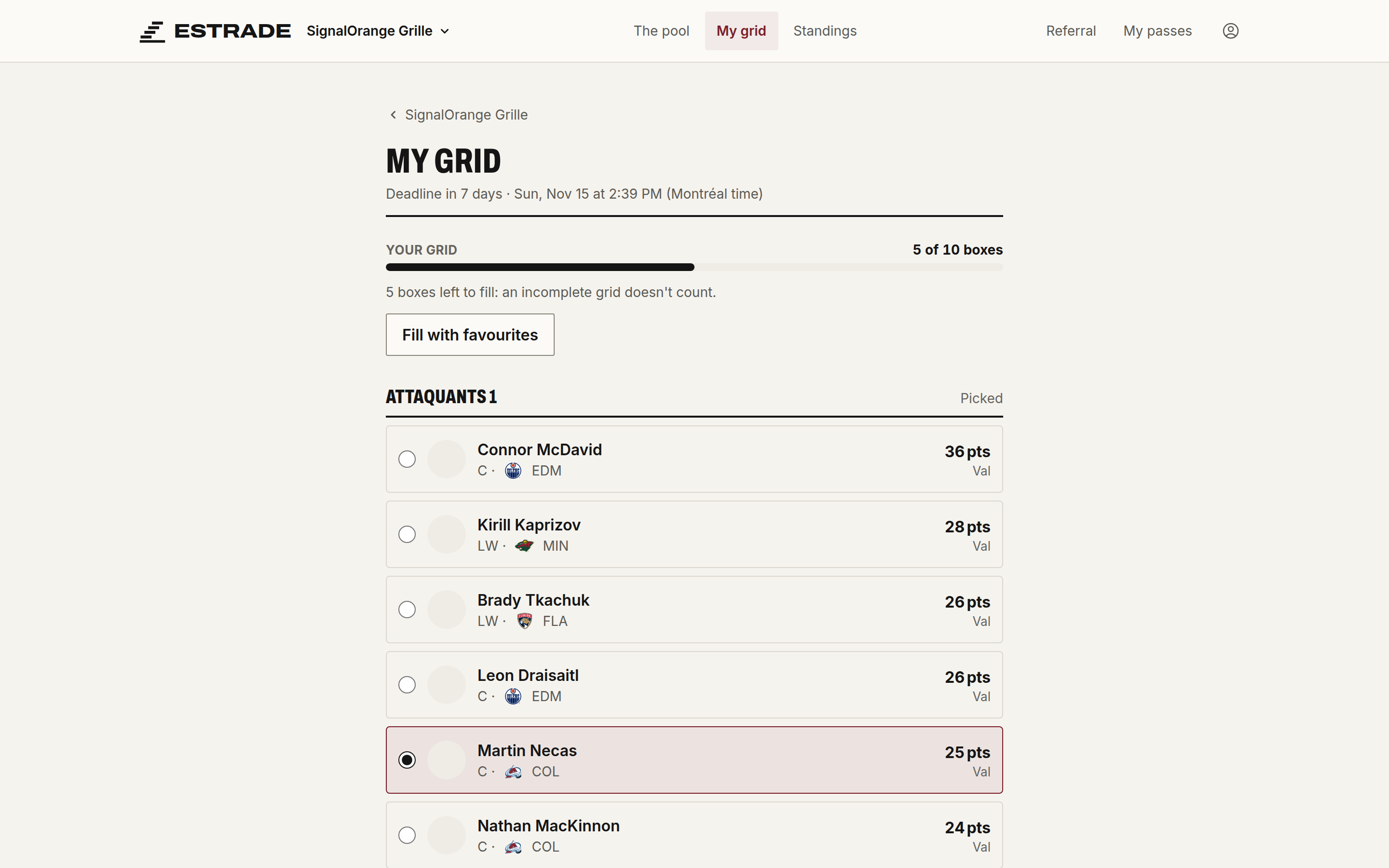
In a box pool, there is no draft. The commissioner sets up boxes of players, and each participant picks one player per box. Several participants can pick the same player.
- Open My grid.
- Pick a player in each box.
- Answer the Tiebreaker question, which breaks ties.
- At the deadline, complete grids lock on their own. An incomplete grid doesn't count.
With the Grand Pool Pass, there is no limit on the number of participants.
Set up the grid (commissioner)
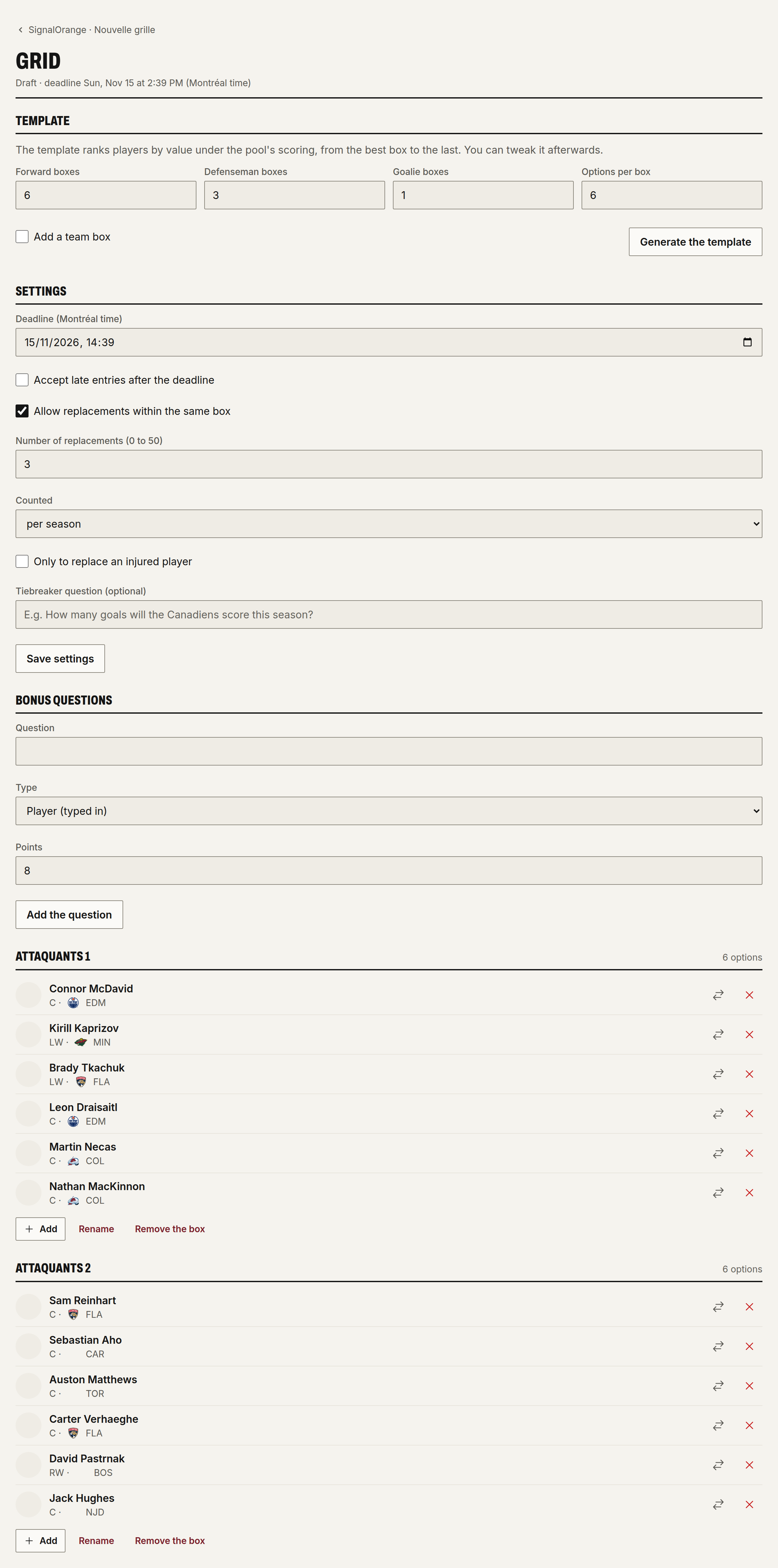
- On the pool home, click Set up the grid.
- Under Template, choose the Forward boxes (6 by default), the Defenseman boxes (3), the Goalie boxes (1) and the Options per box (6, from 2 to 12). Check Add a team box for a box of NHL teams. You need 3 to 20 boxes in all.
- Click Generate the template. Players are sorted by value under the pool's scoring, from the best box to the last. Generating again replaces your edits.
- Edit the boxes: Add a player or a team, Rename, Remove the box, move or remove an option. A player is in only one box.
- Under Settings:
- Deadline, in the pool's time. Estrade suggests 30 minutes before the next game. If it falls after the night's first game, tonight's games don't count.
- Accept late entries after the deadline: no by default.
- Allow replacements within the same box: yes by default, no in a playoff pool. The Number of replacements (3 by default) is Counted per season or per month. Only to replace an injured player limits replacements to injured players.
- Tiebreaker question (optional): it breaks ties.
- Click Publish the grid. Entries open. The boxes and the question can't change anymore; the deadline and replacements can.
At the deadline, complete grids lock, if the pass is paid. Then enter the Correct answer to the tiebreaker question: the standings use it to break ties.
Add a grid for someone creates a spot without an account in their name. You fill in their grid, and the person can claim it later.
In a playoff pool, the grid only holds the 16 qualified teams and is published once they're known.
End of season
Trophy case
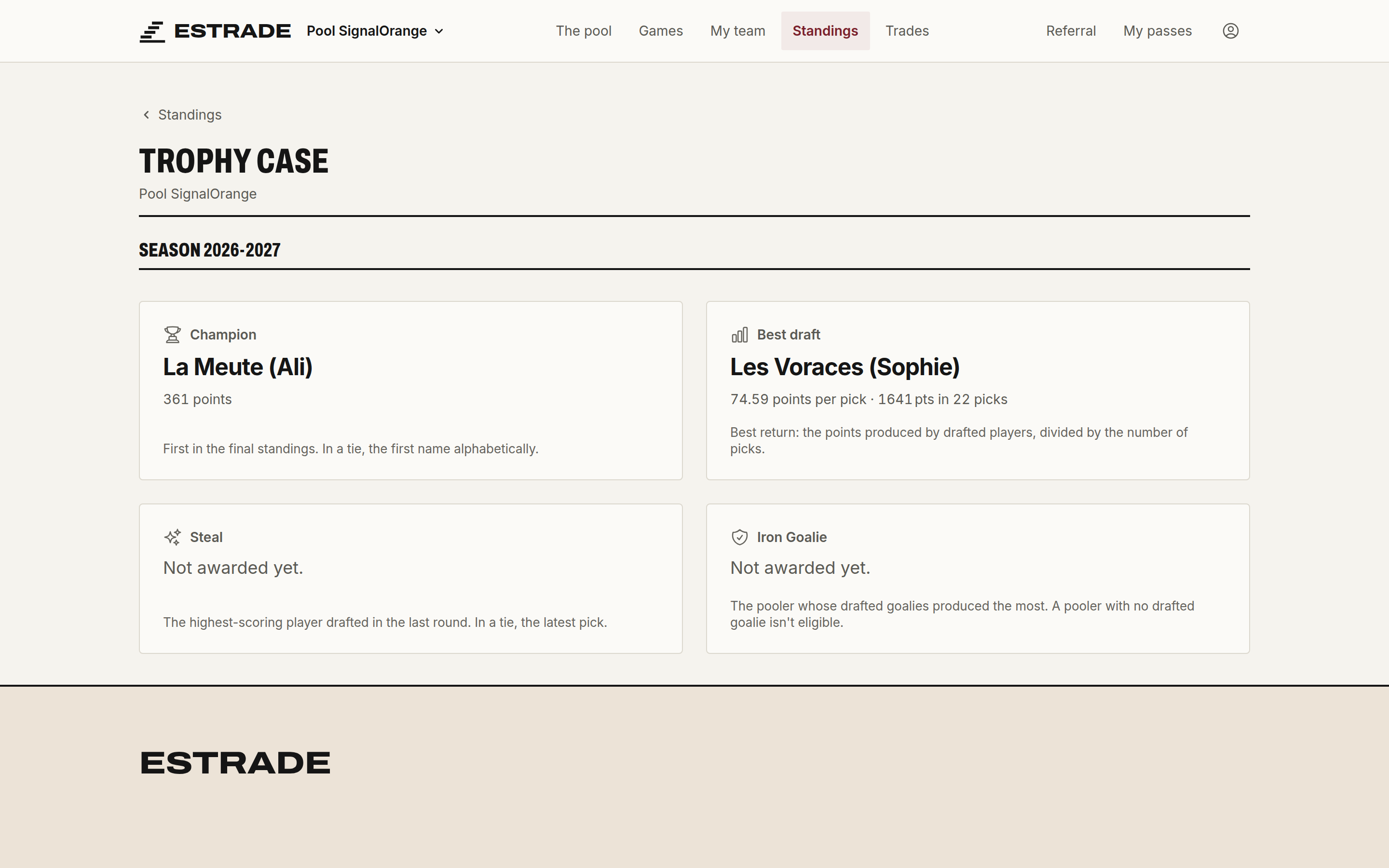
The Trophy case crowns the champion and the category leaders when the season is over.
Share and export
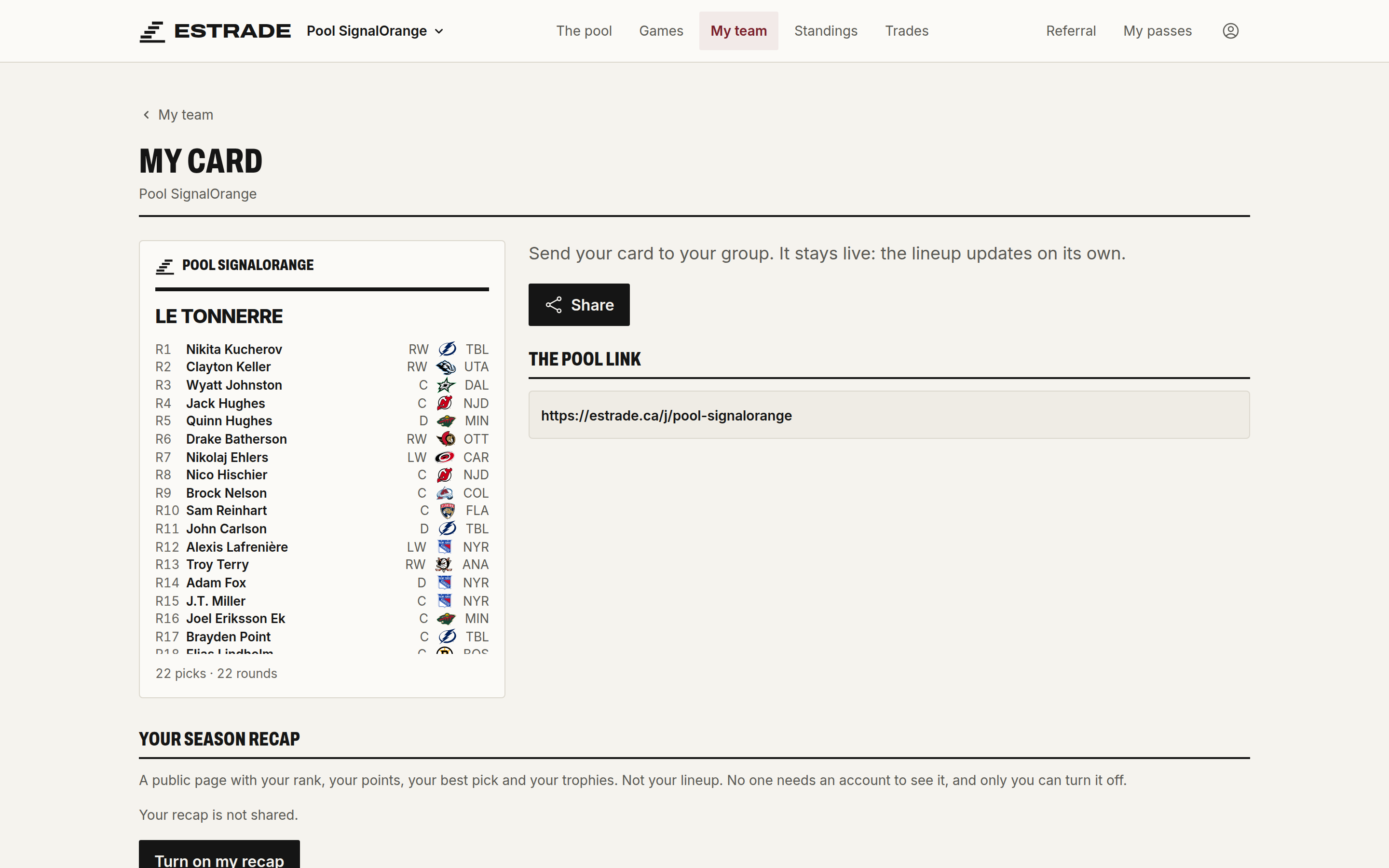
My card, in the My team menu, creates a card of your team to share. Turn on my recap gives it a public page.
The commissioner can open a public standings page (public link, logo and Discord). They can also export the draft as CSV or JSON from Pool info, and the teams as Excel from My team.
Pool settings
The commissioner opens Pool settings in the pool menu. The sections follow the order of the screen. Each one has its own save button, and poolers see the change right away.
In a box pool, the page only keeps the sections that apply: name, welcome, AI agents, access, scoring, public link, logo, Discord and archive.
The Draft, the order and the Salary cap lock at the first pick of the draft. In a playoff pool, the Lineup and the scoring lock too. Everything else can be changed at any time. An archived pool can't be changed: reopen it first.
A commissioner AI agent can change the lineup, the draft, the order, the cap and the season rules, with the same limits (connect an AI agent).
Name, welcome and rules
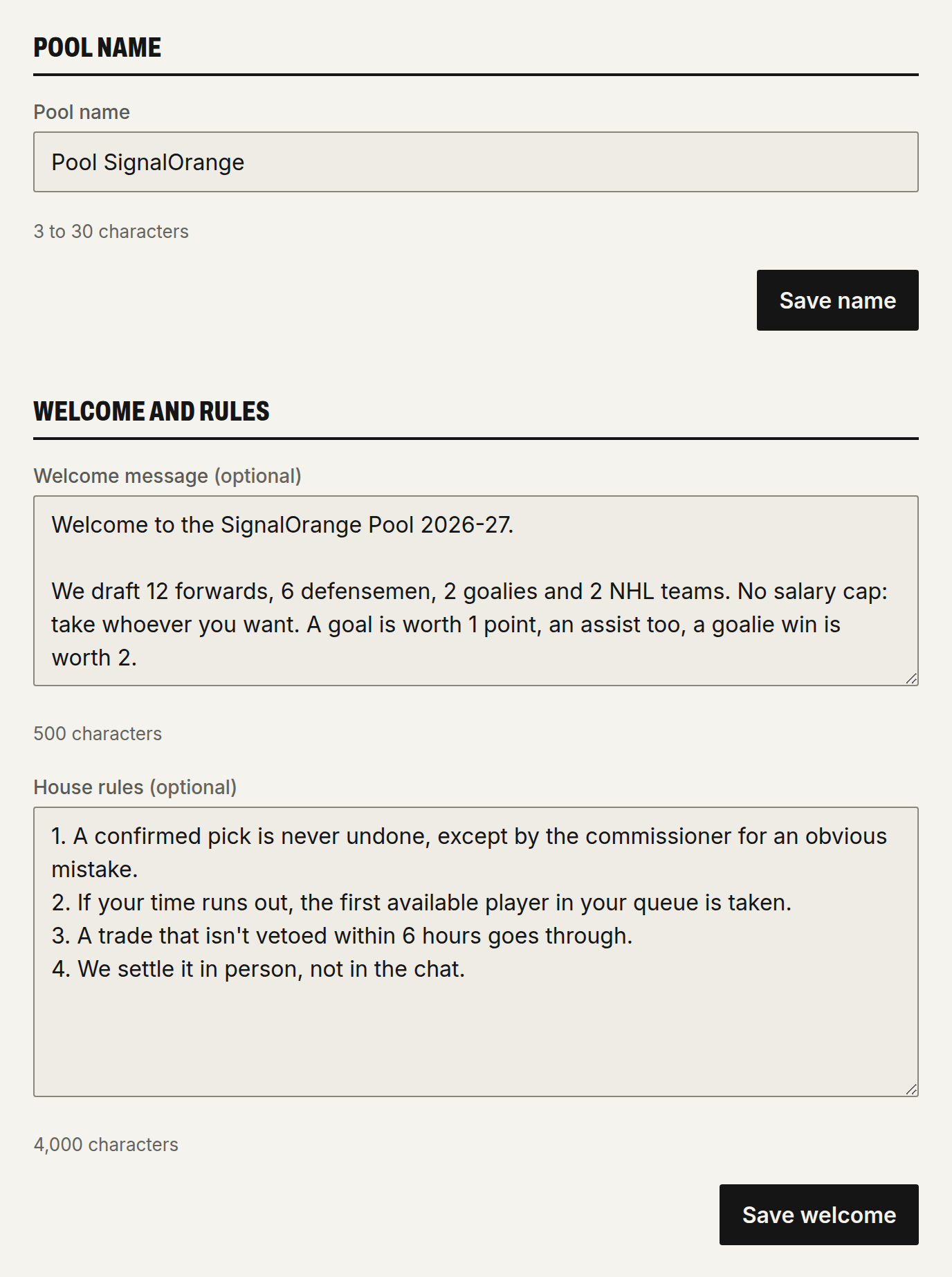
- Pool name: 3 to 30 characters. The invitation link follows the name: renaming the pool changes the link, and the old one stops working. The public link doesn't change.
- Welcome message (500 characters) and House rules (4,000 characters): they show on the pool home, on the invitation page and on the public page. The first line of the welcome message is the preview when the link is shared.
AI agents and access
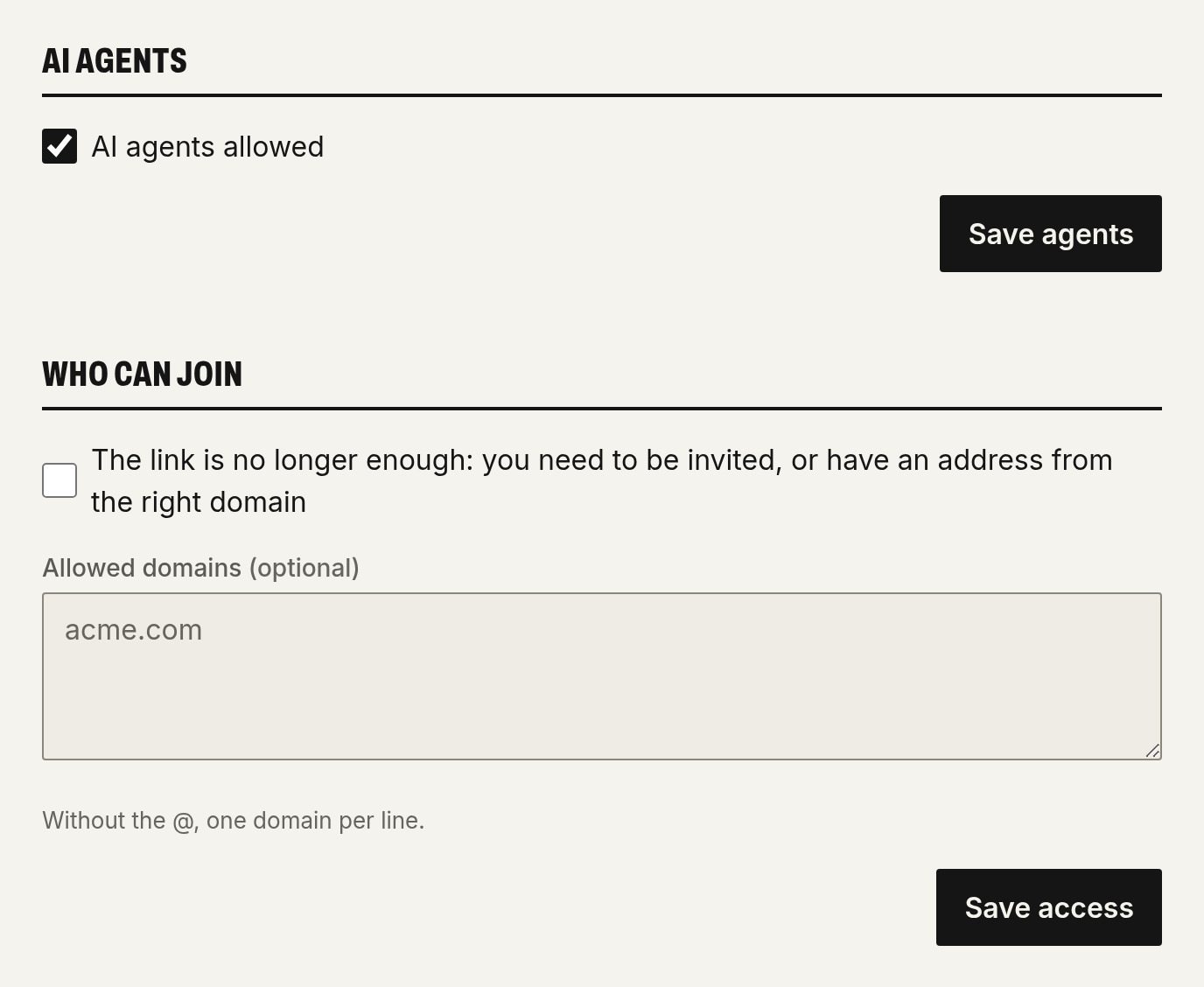
- AI agents allowed: checked by default. Unchecked, no AI agent reads or plays in this pool, not even the commissioner's.
- Who can join: by default, anyone with the invitation link gets in. Check The link is no longer enough to only accept people invited by email. Allowed domains lets in addresses from those domains, one per line, without the @ (10 at most). A single domain is enough to close the link to other addresses, even without the checkbox. An imported pool only accepts invited people.
Lineup
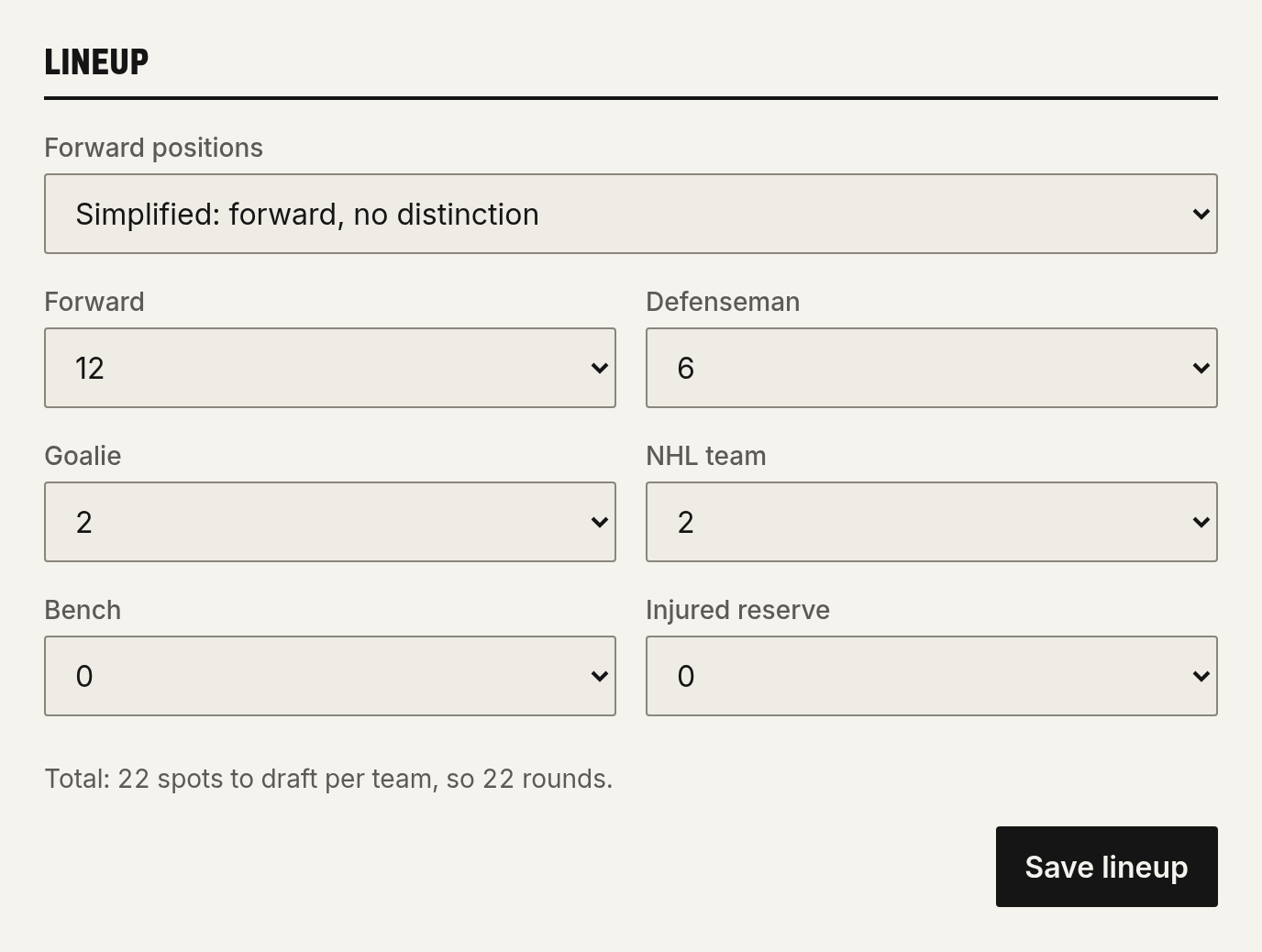
Forward positions: Specific (center, left wing, right wing) or Simplified (forward, no distinction). Specific by default for a season pool, Simplified for a playoff pool.
Then the number of spots per position, from 0 to 12:
| Spot | Season pool | Playoff pool |
|---|---|---|
| Forwards | 2 centers, 2 left wings, 2 right wings | 6 |
| Defensemen | 4 | 3 |
| Goalies | 2 | 1 |
| NHL team | 0 | 0 |
| Bench | 3 | 0 |
| Injured reserve | 2 | 0 |
The lineup total, without injured reserve, gives the number of draft rounds: a drafted player never goes to injured reserve. A player drafted beyond their position goes to the bench. When the position and the bench are full, Estrade refuses the pick. Trades and waiver claims follow the same rule.
An NHL team spot is drafted like a player. It earns points for each win (Team W) and overtime loss (Team OTL) of that team, under the scoring.
In a season pool, the lineup can be changed even after the draft, without removing any player already drafted. In a playoff pool, it locks when the draft starts.
Draft
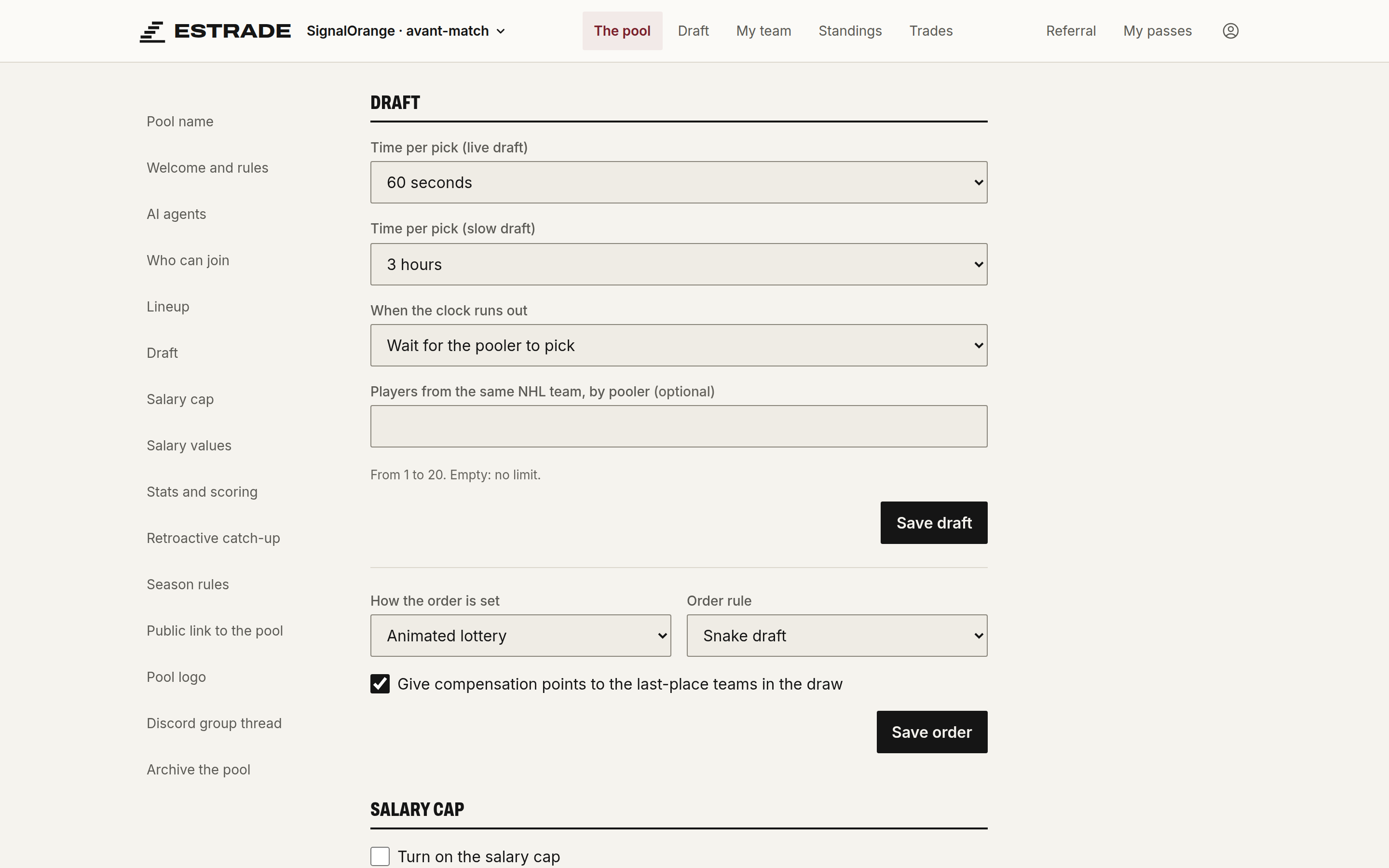
- Time per pick (live draft): 30 seconds, 60 seconds (default), 90 seconds, 2 minutes or Unlimited.
- Time per pick (slow draft): Off (default), or from 1 to 24 hours. The draft always starts live; the commissioner switches to a slow draft in the draft room (the slow draft). Without a slow draft time, they can't.
- When the clock runs out: if the pooler's auto-pick is on, Estrade takes the first valid player in their queue. Otherwise:
- Skip to the next pooler (default): the pooler loses that pick and doesn't get it back later.
- Wait for the pooler to pick: the draft waits, with no clock, until the pooler picks or the commissioner picks for them.
- Players from the same NHL team, by pooler: empty by default, with no limit; otherwise from 1 to 20. The limit only applies to the draft, not to trades or waiver claims. NHL team spots don't count.
- How the order is set: Join order (default) or Animated lottery (draw the order). The lottery needs at least 4 poolers. If nobody has run it, Estrade draws when the draft starts. Changing the settings after a draw doesn't redo the order: you have to run the lottery again.
- Order rule: Snake draft (default), where the order flips every round, or Snake draft with third-round reversal, where round 3 repeats the order of round 2. With four poolers:
| Round | Snake | With third-round reversal |
|---|---|---|
| 1 | A B C D | A B C D |
| 2 | D C B A | D C B A |
| 3 | A B C D | D C B A |
| 4 | D C B A | A B C D |
- Give compensation points to the last-place teams in the draw: checked by default, but does nothing without a draw. The first half of the order gets nothing; after that, each spot gets one more point. With 8 poolers: 0, 0, 0, 0, 1, 2, 3, 4. These points don't count in the standings. They're used to bid on a waiver claim (free agents and waivers).
Salary cap and salary values
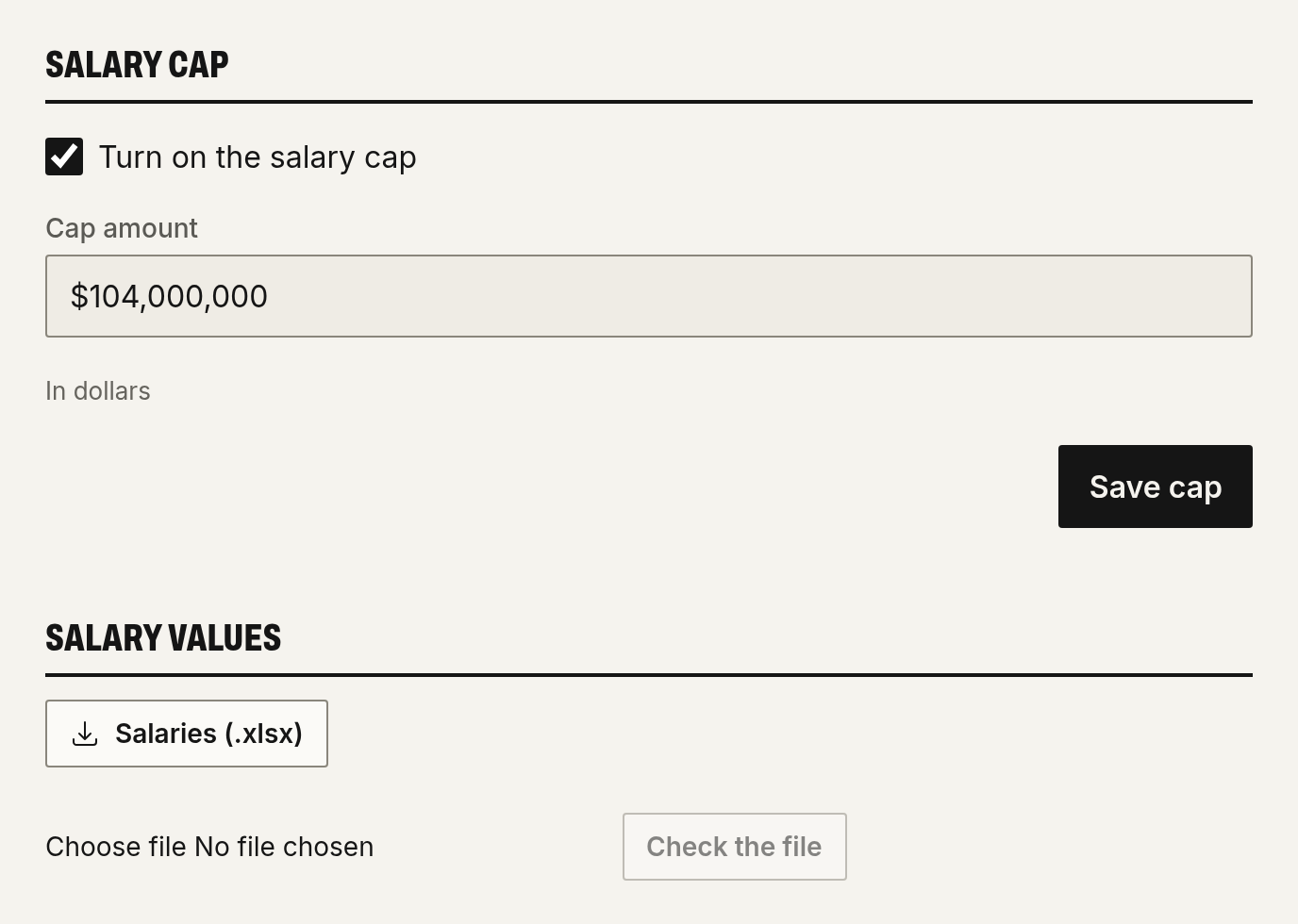
Turn on the salary cap: unchecked by default. Cap amount: $104,000,000 by default, in dollars.
With the cap:
- In the draft, a pick that goes over what the pooler has left is refused, and auto-pick skips that player. A player with no salary value counts as the NHL minimum salary, $775,000.
- A value changed during the draft counts right away. A pooler it pushes over the cap keeps their players, but can't draft another player until they're back under the cap.
- During the season, a trade that puts either pooler over the cap is refused. So is a waiver claim: if the winner goes over, the player goes to the next one.
Salary values sets the players' salaries for this pool. They can be changed at any time.
- Click Salaries (.xlsx) to download the workbook.
- Fill in the new value column, in dollars. An empty cell changes nothing.
- Choose the file and click Check the file. Fix or remove the flagged rows.
- Enter a Reason, one for the whole batch, and click Write the adjustments.
Stats and scoring
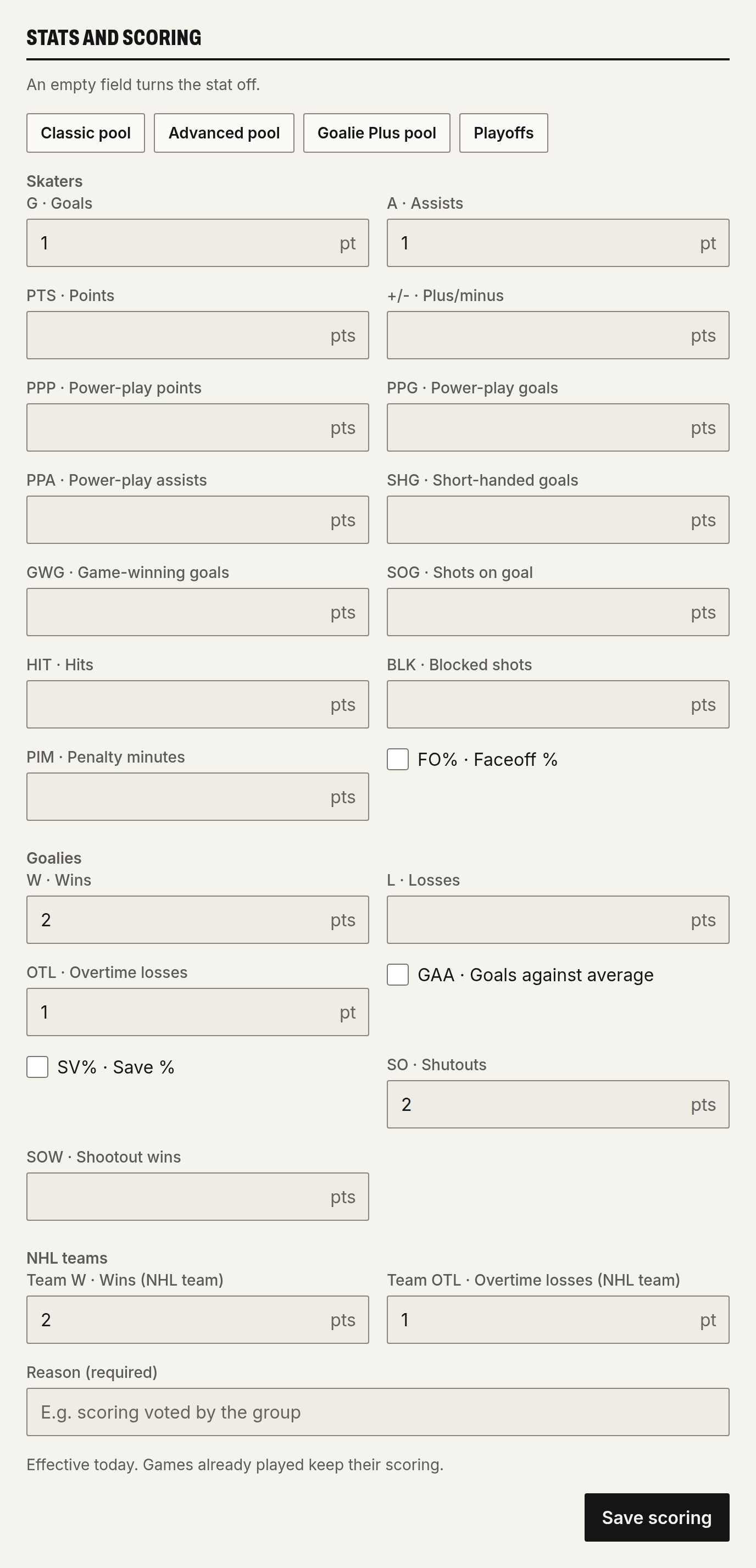
The scoring gives the points for each stat of skaters, goalies and NHL teams. An empty field turns the stat off, and a negative number takes points away. The Classic pool, Advanced pool, Goalie Plus pool and Playoffs buttons fill in the form; you still have to save.
| Pool | Default scoring |
|---|---|
| Season | Goal 2, assist 1, shot on goal 0.2, plus/minus 0.5, win 2, shutout 3 |
| Playoffs | Goal 1, assist 1, win 2, shutout 2 |
Percentages (FO%, GAA, SV%) don't give points. They're only used as categories in head-to-head.
Each change needs a Reason. It applies from today on: games already played keep their scoring. The change goes into the adjustment log. To change the past, use the retroactive catch-up. In a playoff pool, the scoring locks when the draft starts.
Retroactive catch-up
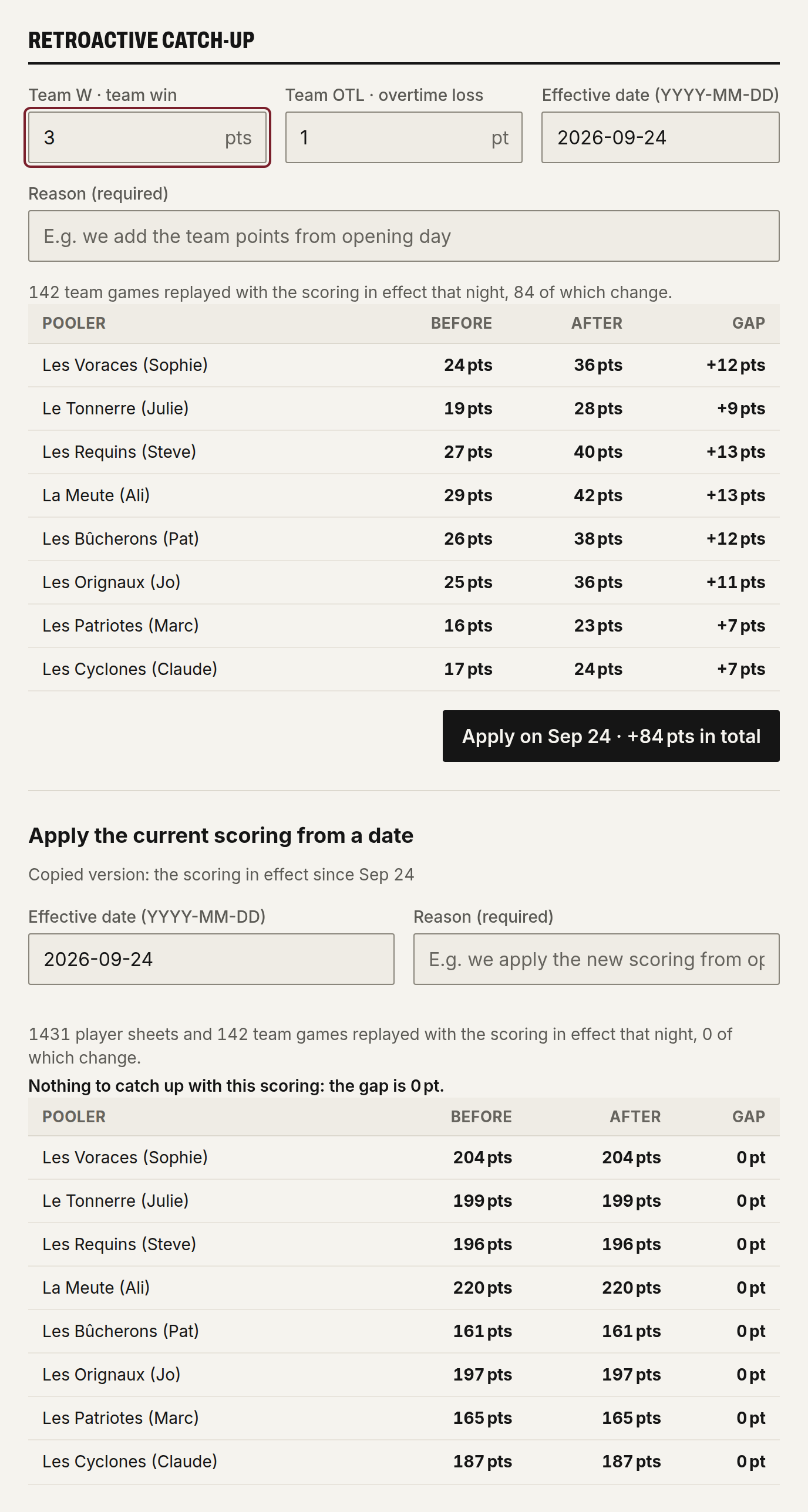
The catch-up applies a scoring to games of the current season that were already played, from an Effective date.
- Apply the current scoring from a date reuses the scoring in effect.
- Team W · team win and Team OTL · overtime loss set the points for NHL teams. This block shows when the lineup has NHL team spots.
Before you confirm, Catch-up preview shows each pooler's points before, after, and the difference. The Apply button needs a Reason; it doesn't show when the difference is zero. The standings are then recalculated.
Season rules
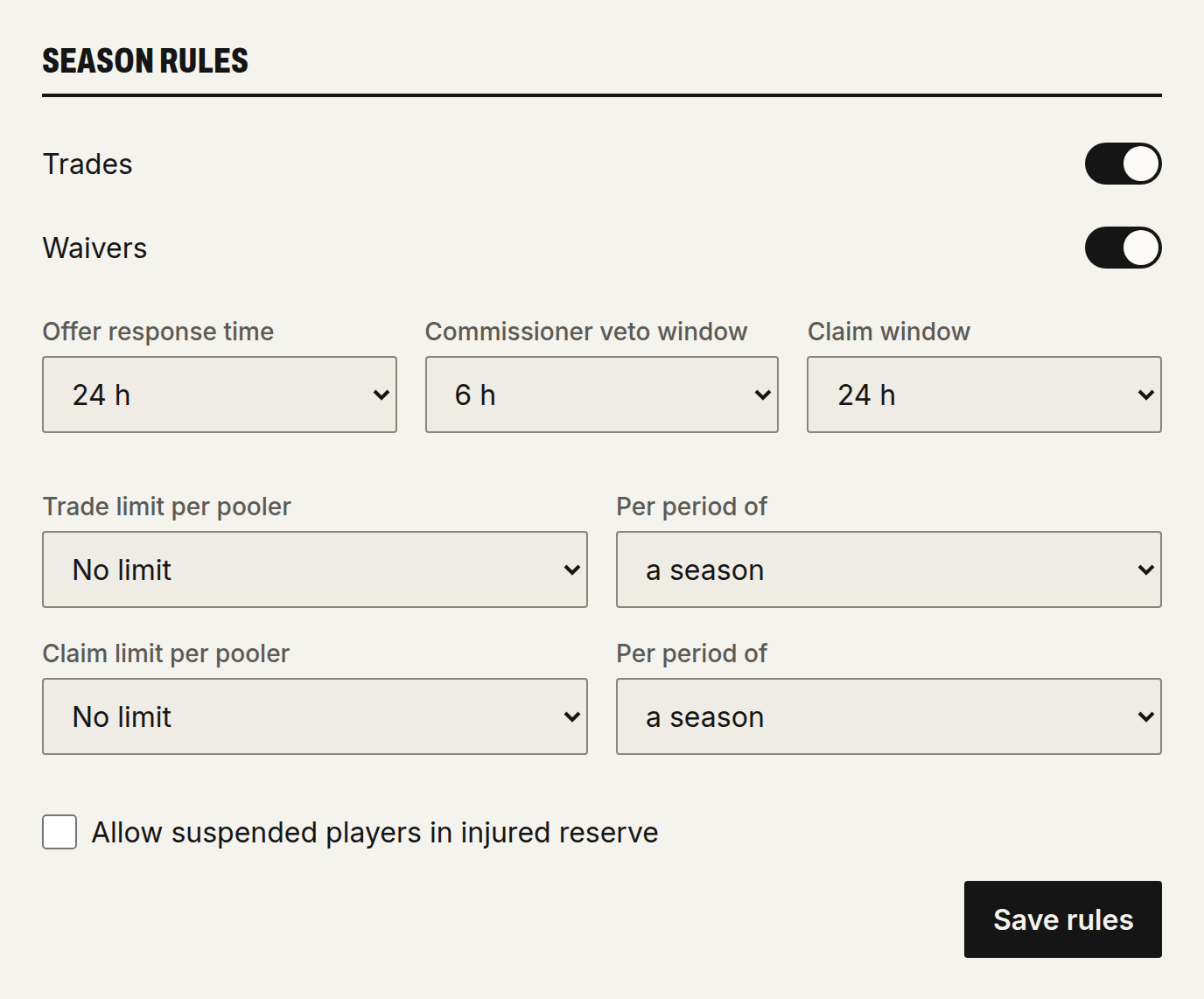
- Trades and Waivers: on by default, off for a playoff pool or a grid. These switches take effect right away. Off, they block new offers and new waiver claims; an offer already sent can still be accepted, and a claim in progress settles on time.
- Offer response time: from 12 to 72 h, 24 h by default. After that, the offer expires.
- Commissioner veto window: from 2 to 24 h, 6 h by default. An accepted trade goes through at the end of that window. Until then, the commissioner can veto it.
- Claim window: from 12 to 72 h, 24 h by default. A claim that doesn't drop any player stays open during that window, and other poolers can claim the same player. A claim that drops a player settles right away.
- Trade limit per pooler and Claim limit per pooler: no limit by default, otherwise from 1 to 30, Per period of a month or a season. Only completed trades and won claims count. The month starts on the 1st.
- Allow suspended players in injured reserve: unchecked by default; injured reserve then only accepts injured players. A player who has no longer been eligible for 72 h goes back to the bench, and their pooler gets an alert.
Making a window longer extends offers and claims that are already open. Making it shorter doesn't cut them short.
Public link, logo and Discord
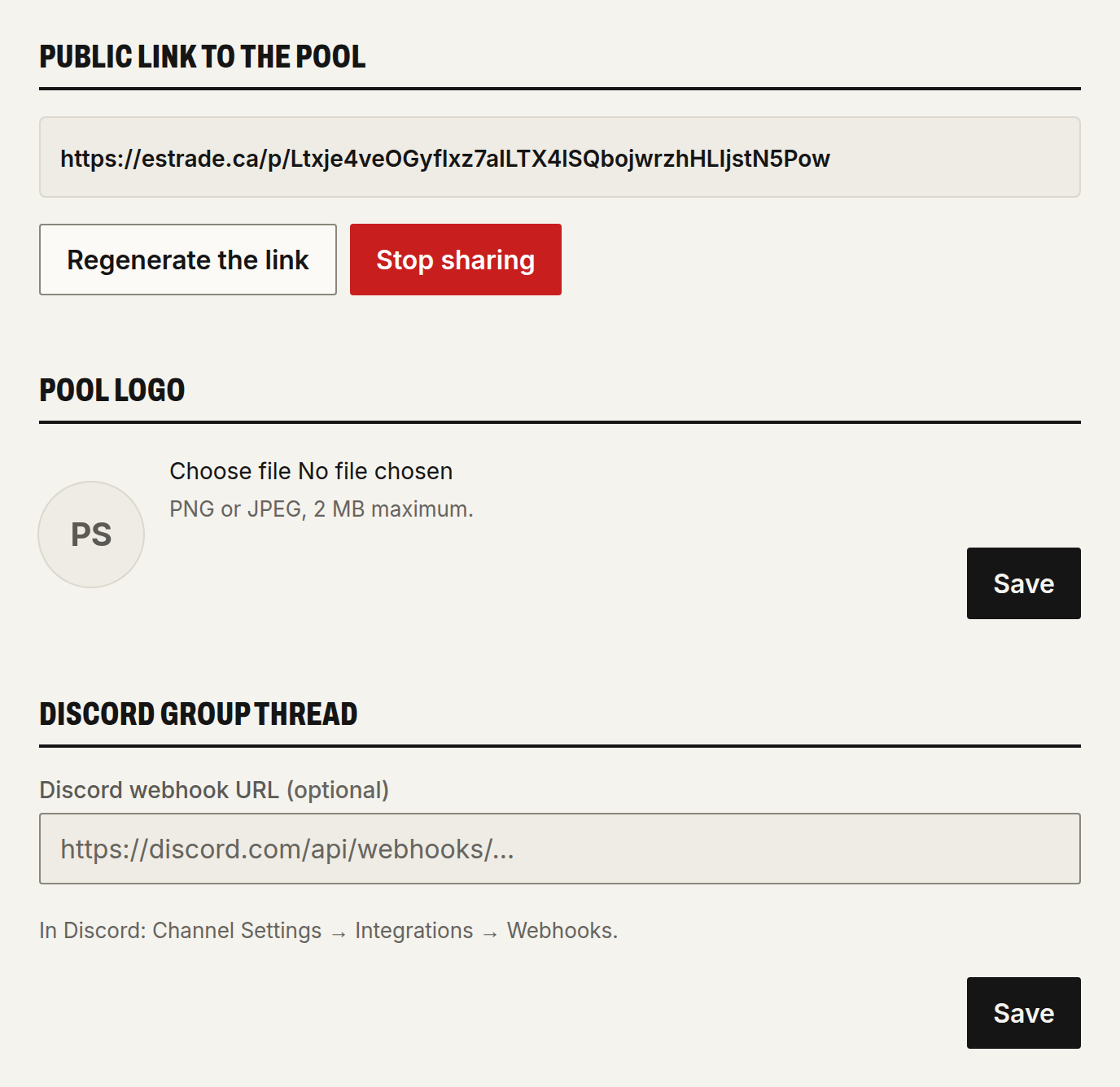
- Public link to the pool: Turn on link creates a page anyone can see without an account: the standings, the highlights, the welcome message, the rules and a Join the pool button. Never the lineups or the draft. Each pooler shows up under a pseudonym, unless they turn on My name on public pages in Customize the team. Regenerate the link cuts off the old link; Stop sharing closes the page.
- Pool logo: PNG or JPEG, 2 MB and 2,000 pixels per side at most. It's the image that shows when the invitation link or the public page is shared.
- Discord group thread: paste the Discord webhook URL (in Discord: Edit Channel → Integrations → Webhooks). The pool's alerts arrive in that channel: draft turns and picks, player injuries and returns, trades, waiver claims, the weekly recap. Grid alerts don't go there.
Practice, reset and archive
- Switch to a real pool: in a practice draft, before the draft. The pool keeps its poolers and its settings, and the next draft is kept. It then needs the pass.
- Reset the draft: once the draft has started, except in an imported pool. Erases the picks, the drawn order, the trades, the waiver claims, the lineups and the scoring adjustments, and resets compensation points to zero. The poolers, the settings and the queues stay. The pool goes back to before the draft, and the locked settings unlock. You have to type the pool's name to confirm.
- Archive the pool: before or after the draft, never during it. The pool leaves everyone's list and no longer accepts trades, waiver claims or lineup changes. Nothing is erased. Reopen the pool puts it back where it was.
On the Standings page
The standings menu has a Commissioner section:
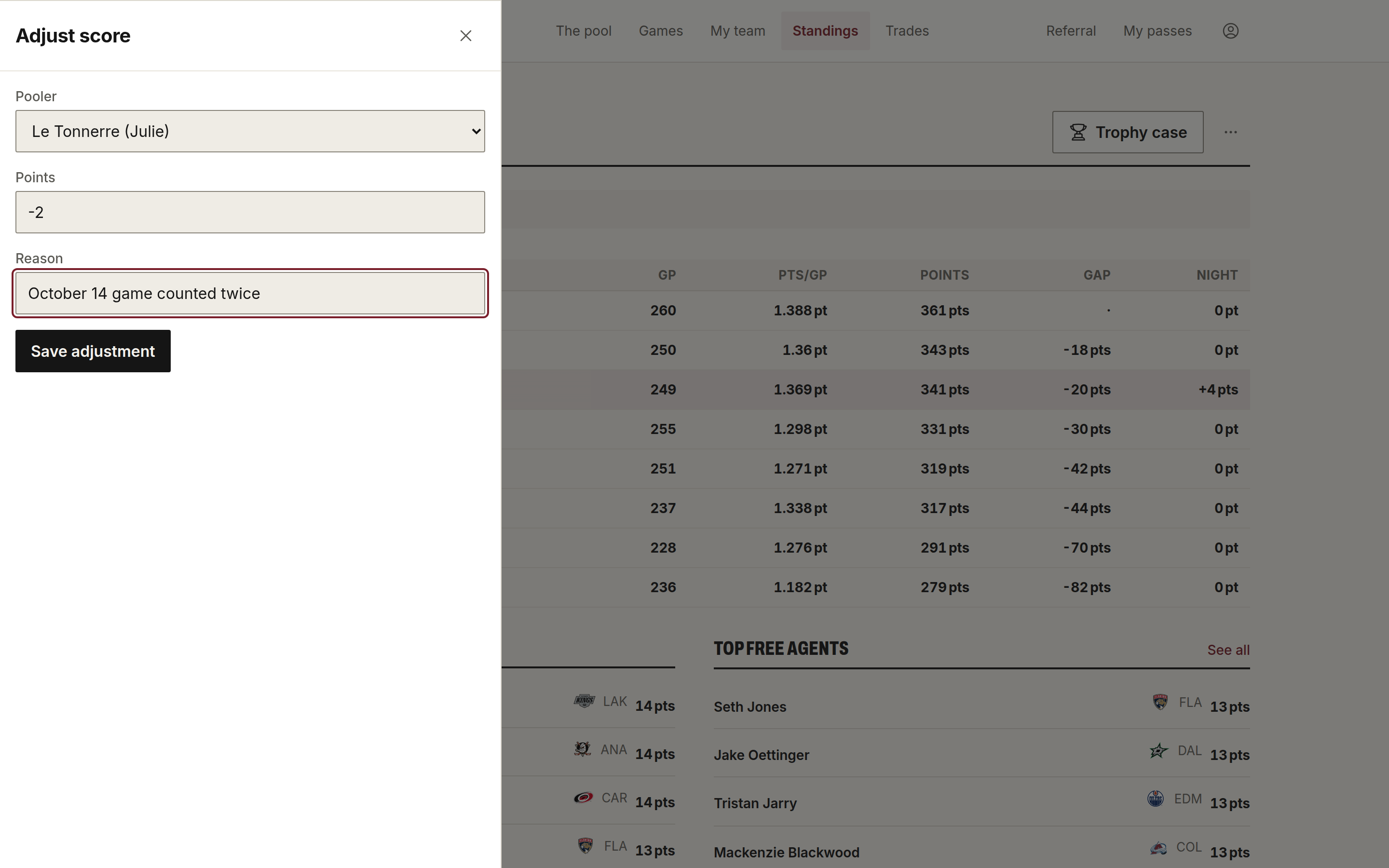
- Adjust score (points pool, after the draft): choose the pooler, the points and a Reason. A negative number takes points away. An adjustment can't be erased: to cancel it, adjust by the opposite amount.
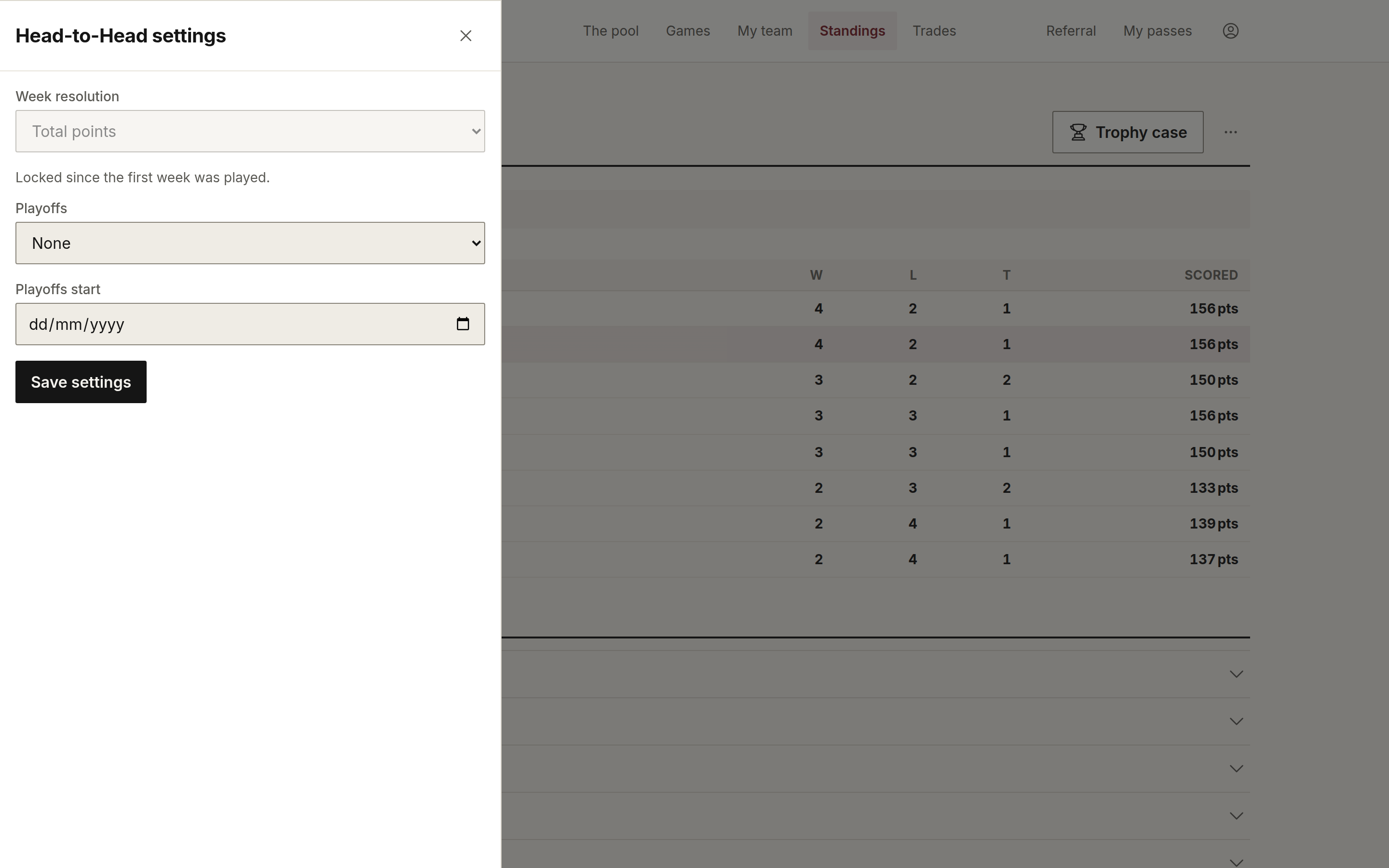
- Head-to-Head settings (head-to-head pool):
- Week resolution: Total points (default), where the biggest total of the week wins, or By category, where each stat in the scoring is a category and whoever wins the most categories wins the week. For losses and GAA, the lowest wins.
- Playoffs: None (default), Top 4 (1 vs 4, 2 vs 3) or Top 6 (the top two get a bye through round 1, 3 vs 6, 4 vs 5). One round per week; a tie goes to the higher seed.
- Playoffs start: the playoffs start on the Monday of that week. Season matchups scheduled from that Monday on are erased; Estrade asks you to confirm first.
The week resolution locks after the first week played. The playoffs and their date lock when the playoffs start.
In head-to-head, a week runs from Monday to Sunday, and only players in the lineup on the night of the game count. A win is worth 2 points in the standings, a tie 1. In a tie, total points scored break it. With an odd number of poolers, one pooler has a bye each week.
The Adjustment log is visible to everyone. It lists adjustments, starting records from an import, scoring changes with their reason, and official NHL corrections.
Invitations and spots without an account
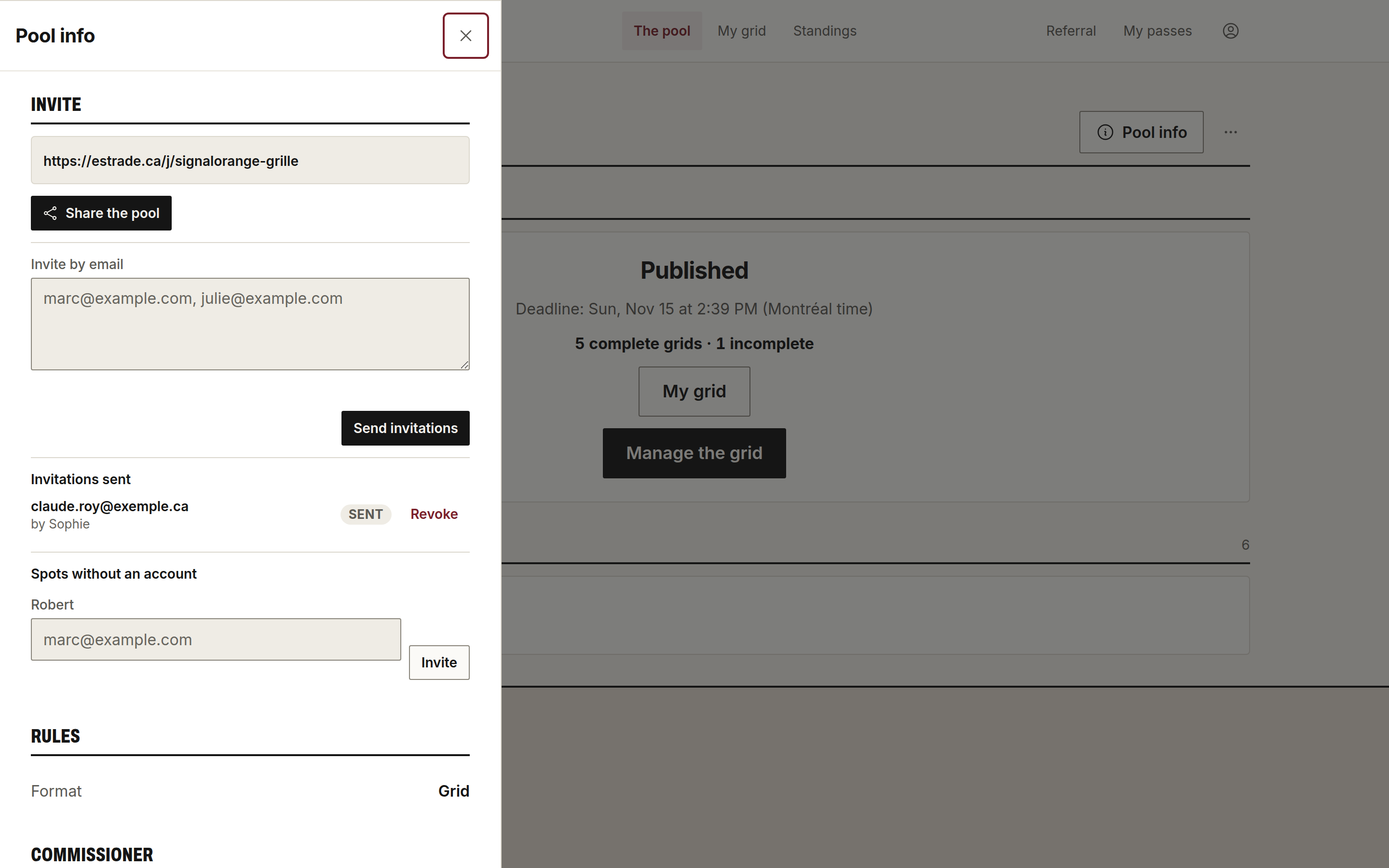
In Pool info, the commissioner has:
- Invite by email: addresses separated by commas, then Send invitations.
- Invitations sent, with Revoke.
- Spots without an account: the teams that don't have a pooler yet, after an import or a grid added for someone. Enter an email and click Invite so the person can claim it.
As long as a spot has no account, the commissioner manages its lineup and answers the trade offers it gets.
Before the draft, the Poolers list lets you Remove a pooler: their team and their draft list are deleted. If the order was already drawn, run the lottery again. Once the draft has started, nobody can be removed.
Alerts
Open Notifications in your account menu. Choose your channels (email, notifications on your phone) and what you want to get: draft, your players, the players you follow, live games, trades and waiver claims, the grid, recaps.
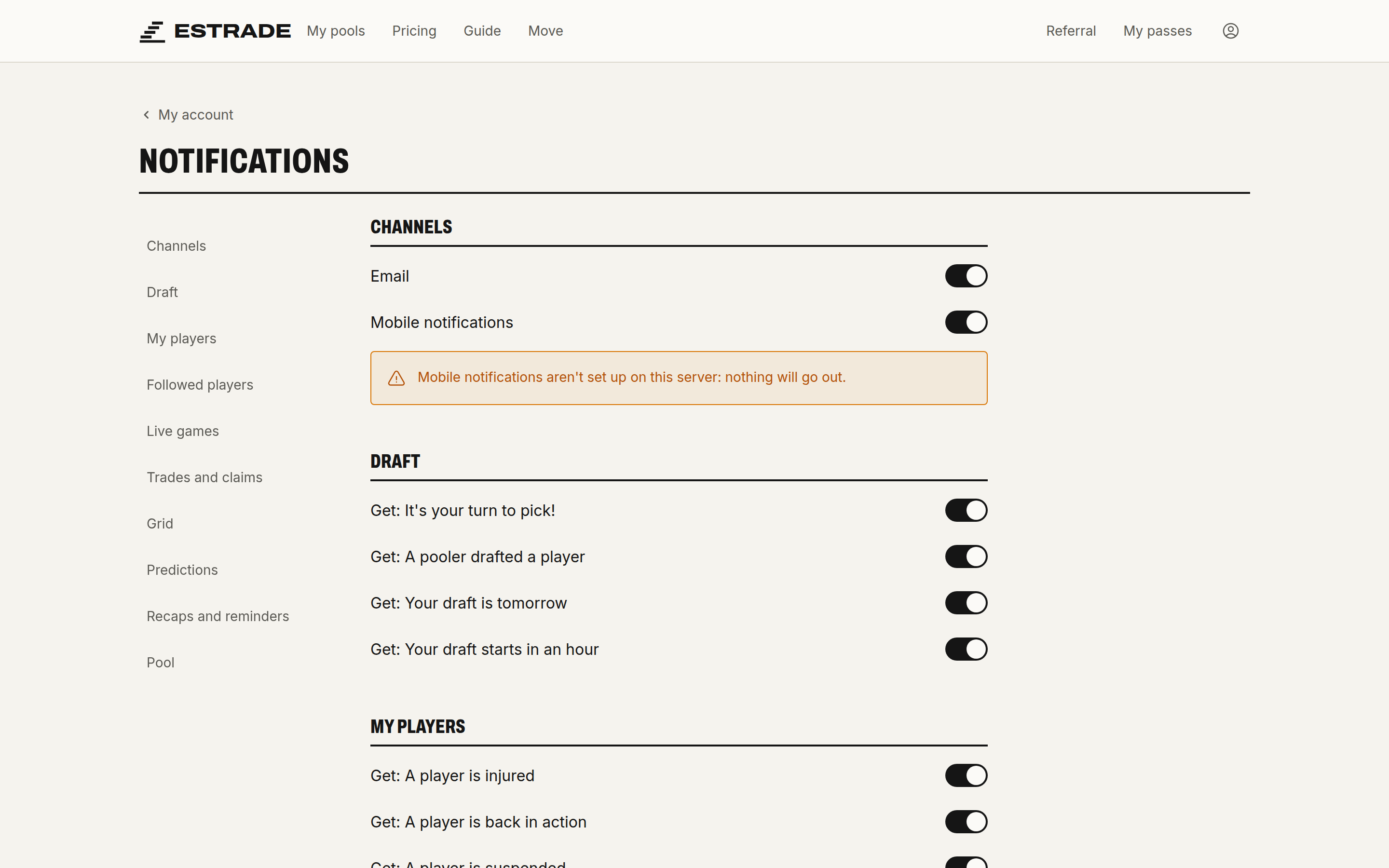
On each device:
- iPhone and iPad: until the app is out, add Estrade to your Home Screen (open
estrade.ca/installer) to get "it's your turn". With the app, it will ask for permission the first time you enter a draft room; the lock screen will show the clock, and the app will remind you of your pick ten minutes before your turn ends, and an hour before in a slow draft. - Mac: the Mac app, once it's out, will get notifications like the iPad.
- Android: install Estrade with Chrome, then allow notifications.
- Computer: alerts arrive by email.
After the draft, a pool recap arrives every Monday.
Company league
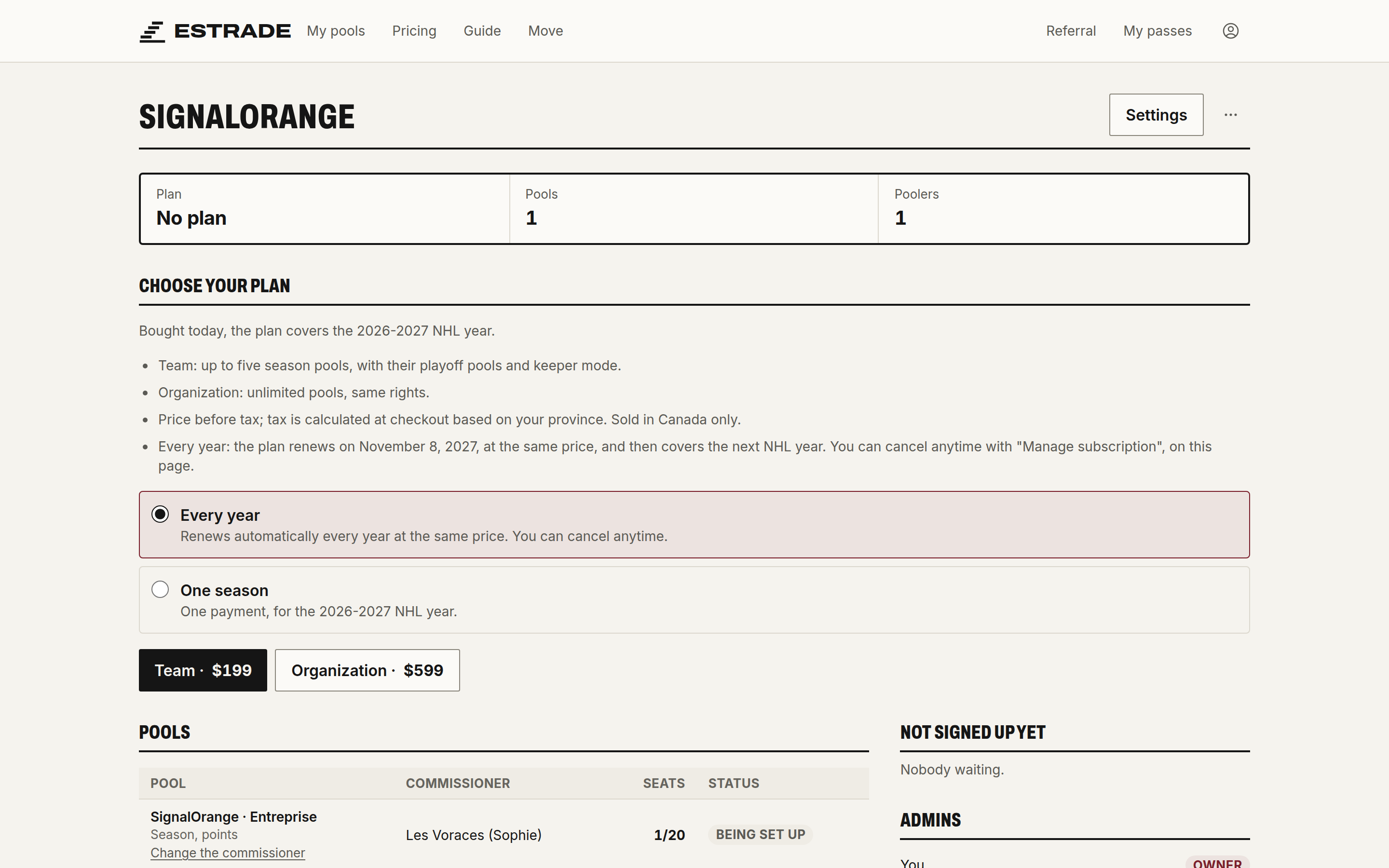
A company league groups the pools of one employer, with league standings across the pools.
- Open Open a league on the Pricing page.
- Enter the League name and your employer's Email domain, then click Send the confirmation link. You need an address from that domain.
- Click the link you receive. You land on the league page, where you choose the plan and create the pools.
In a league, the other pools see your pool's name, your display name, your points and your rank. Never your players, your draft or your trades.
Connect an AI agent
An AI agent, like Claude or ChatGPT, can read your pools: teams, standings, players, trades. The address to give it is https://estrade.ca/mcp.
Two checkboxes set what it can do:
- Play for you: it manages your lineup, your trades, your waiver claims, the poll and your grid. Before the draft, it sets up your queue and sets auto-pick. During the draft, when Estrade opens these actions, it can change your queue, turn auto-pick on or off and make your pick on your turn. A pick made by the agent can't be taken back. The checkbox is checked by default for an agent, unchecked for a personal token.
- Manage your pools as commissioner: unchecked by default. It can veto a trade, decide and cancel waiver claims, adjust a score, change the lineup, draft, order, cap and season settings, run the poll and the lottery, and invite poolers. With Play for you, it also acts for a spot without an account. During the draft, it can pause and resume the draft, switch from live to slow draft or back, undo the last pick and draft for someone who is away. With All my pools, the permission also covers your future pools.
Starting, finishing and resetting the draft stay in Estrade. An agent that's already connected asks for access again to get a new checkbox and keeps what it had. If it's read-only and doesn't ask for access again, disconnect it and reconnect it in its app.
Claude and ChatGPT
- In Claude, add a custom connector with the address
https://estrade.ca/mcp. In ChatGPT, add it as a connector or app, in developer mode. - Sign in to Estrade if you're asked to.
- Choose all your pools or only some, then click Authorize.
The Connected agents page, in My account, lists your agents, their permissions and their recent actions. You can revoke them.
An agent you host
Create a personal token on the Connected agents page and choose the pools it opens. The token only shows once. Your agent sends it in the Authorization: Bearer <token> header. A token expires after 90 days; the Extend button shows up in the last 30 days.
What the commissioner keeps
The commissioner can turn agents away in the pool settings, AI agents section. A pool that's turned them away stays visible in the authorization, greyed out, and an agent no longer reads its data. The Pool name, Welcome and rules, AI agents and Who can join sections can only be changed in Estrade, never by an agent.